
16.4 Configuration and Full backup sub-tabs
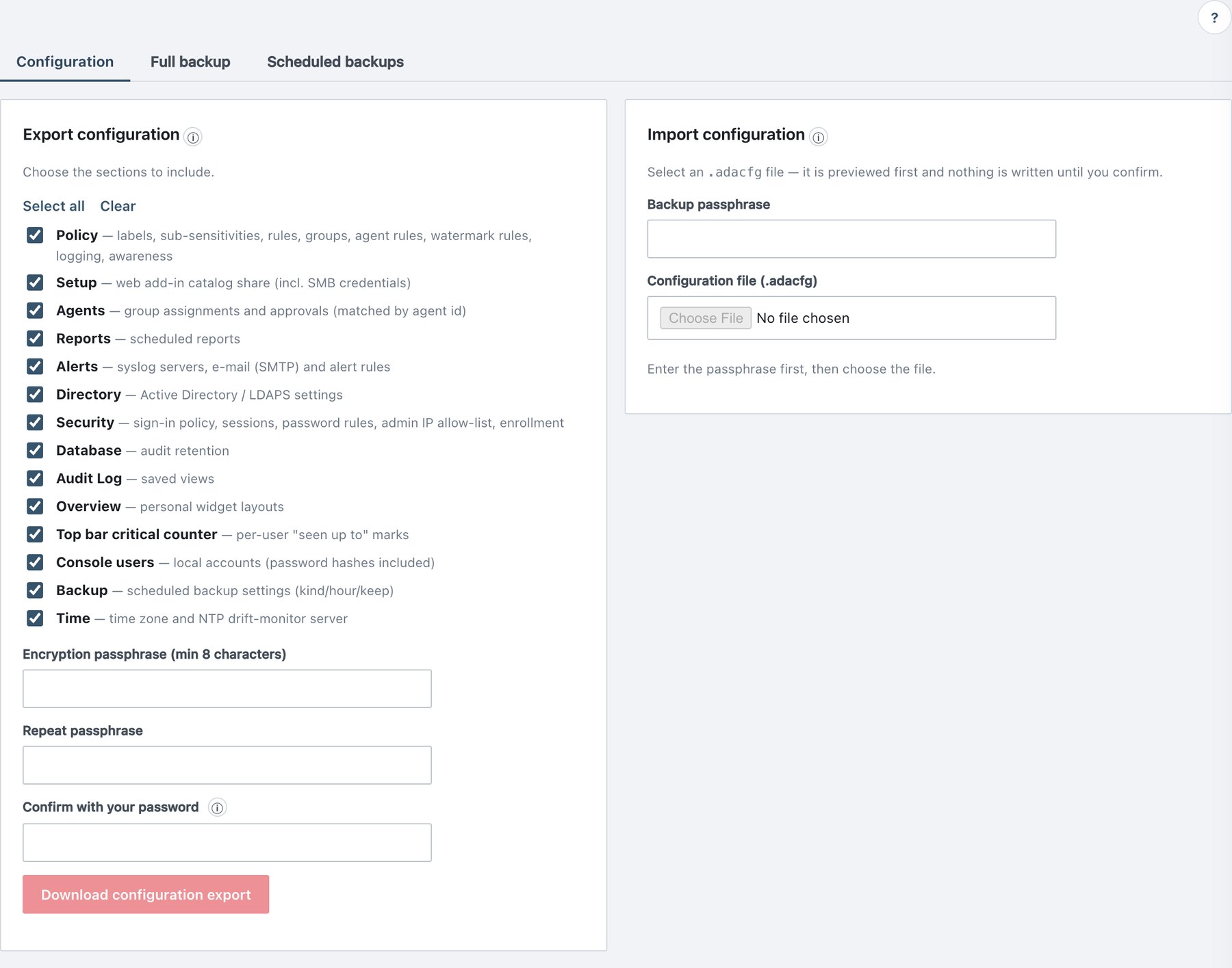
16.4.1 Export configuration
Administration → Backup → Configuration, left card.
- Tick the sections to include (Select all / Clear). All are ticked by default.
- Enter Encryption passphrase (min 8 characters) and Repeat passphrase.
- Enter your password in Confirm with your password.
- Click Download configuration export.
The file is named
ada-config-<version>-<host>-<timestamp>.adacfg.
The action is logged as backup_downloaded with the section
list.
16.4.2 Import configuration
- In the right card, enter the Backup passphrase first (the file input is disabled until you do).
- Choose the
.adacfgfile. It is decrypted and inspected; nothing is written yet. - The Import configuration — preview drawer shows Type, Backup version (✓ same / older backup, import allowed / mismatch), Created, Source host and user, Installation (this installation ✓ / ANOTHER installation / not recorded), any warnings, and Sections in this file with their record counts.
- Untick sections you do not want. Sections that are only meaningful on the original server are unticked by default.
- Enter Confirm with your password; tick Import anyway if the file comes from another installation.
- Click Import N sections and confirm.
Behaviour:
- Selected sections replace the current settings; unselected sections stay untouched. Policy is applied first and published as a new policy version, so agents receive it on their next sync; agent assignments follow.
- Console users: the built-in admin and your own account keep their current credentials and roles; the backup’s entries for those names are ignored.
- Server notes (for example “a backup schedule was enabled but no backup key exists”) are shown as a warning list under the card.
- A full backup chosen here is refused (use the Full backup tab); a legacy (pre-1.1.2) backup must be restored from the Full backup tab.
- Logged as
backup_restored(type config).
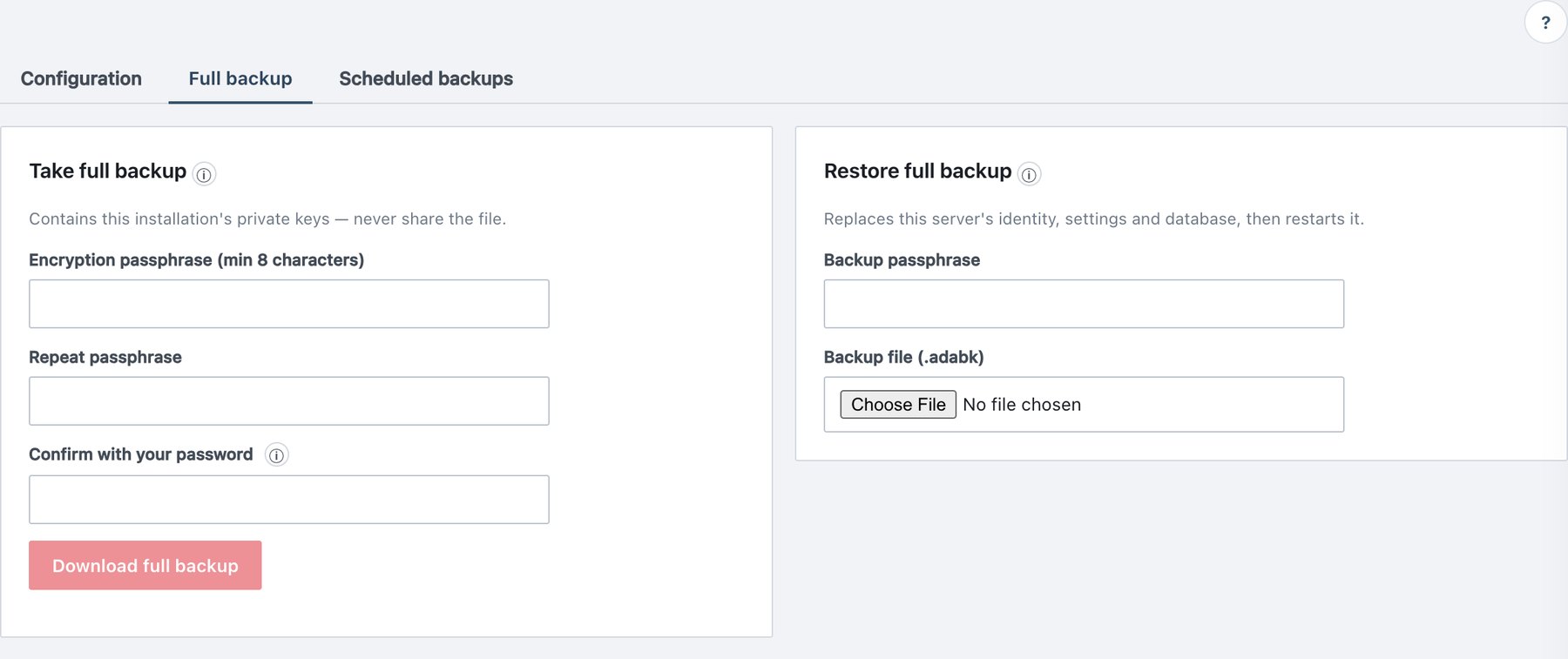
16.4.3 Take a full backup
Administration → Backup → Full backup, left card.
- Enter and repeat the encryption passphrase (min 8 characters).
- Enter your password.
- Click Download full backup.
The file
(ada-full-<version>-<host>-<timestamp>.adabk)
streams from the server as it is produced. The confirmation reminds you
that the internal root CA is not included. Logged as
backup_downloaded (type full).
16.4.4 Restore a full backup
A full restore replaces this server’s identity, settings and database, then restarts the server.
- Administration → Backup → Full backup, right card:
enter the Backup passphrase, then choose the
.adabkfile (legacy.zipfiles are also accepted). - Check the Restore full backup — preview drawer: manifest summary, warnings, Database (pg_dump with PostgreSQL version and size), Identity files, Configuration sections.
- Type
RESTOREin Type RESTORE to confirm and enter your password. Tick Import anyway only if the file deliberately comes from another installation. - Click Restore and restart server.
- Wait about 30 seconds, reload the console and sign in again.
What the server does:
- Re-checks the password, the
RESTOREconfirmation, the version and the origin before changing anything. - Enters maintenance mode: a second restore or backup is refused (A restore is in progress), and audit records arriving during the restore are buffered and appended to the restored chain afterwards.
- Writes a safety copy of the current files to
.restore-backup(kept 7 days, pruned daily). - Restores the files and the database, applies any newer database migrations, reloads the agent inventory.
- Writes
backup_restored(andbackup_foreign_importwhen applicable) and restarts itself.
Enrolled agents trust the restored server without re-enrolment,
provided the root CA is also the same (restore it with
sudo adactl ca restore on a replacement server).
16.4.5 Disaster recovery onto a new server
- Install the same (or a newer) Ada release on the new host (Chapter 3).
- On the host, restore the internal root CA:
sudo adactl ca restore <archive> --passphrase-file <file>(it asks you to type the server name and restarts the web proxy). Never restore a CA older than your lastadactl ca rotate. - In the console (License page or Administration → Backup →
Full backup), restore the latest
.adabk. - Point the server’s DNS name (e.g.
ada.example.com) at the new host. - Check Administration → Status and the Audit Log chain badge; agents reconnect on their next heartbeat.