
10.2 Outlook Rules
Policy → Rules → Outlook Rules controls what happens when users send email and meeting requests: whether a label is mandatory, how attachments influence the email’s label, and which recipient domains label a message automatically. Content rules from 10.1 also run at Send; this page holds only the Outlook-specific settings.
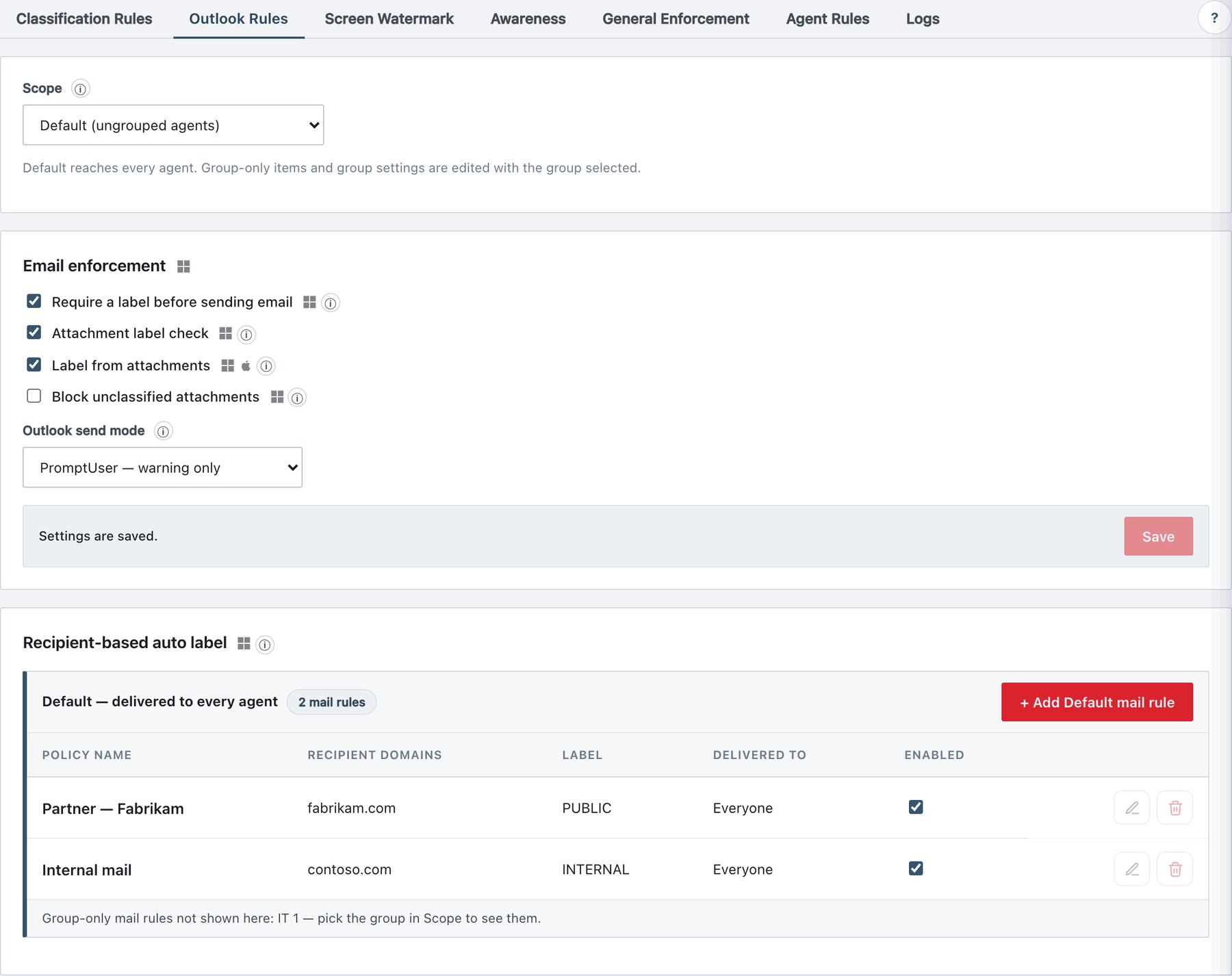
The page has two cards:
| Card | Edit model |
|---|---|
| Email enforcement | Settings card — change the switches, then press the card’s Save, then Publish & Sign. In a group scope the card title reads Email enforcement — “Finance” group and edits that group’s own values. |
| Recipient-based auto label | Layered list of mail rules — edited in a drawer, saved into the draft immediately. |
Which Outlook does what
| Outlook | Ada component | Group used |
|---|---|---|
| Classic Outlook for Windows | Ada COM add-in (installed by the Windows agent; module Outlook). If the Ada web add-in is also loaded, it leaves the send decision to the COM add-in. | The machine’s group. |
| Outlook on the web, new Outlook for Windows, Outlook for Mac | Ada web add-in (module Web add-in · Outlook). Uses Smart Alerts (OnMessageSend); with on-premises Exchange on Mac, the on-send event. | Default, or the group targeted by the user’s mail address (chapter 9). |
Email enforcement
| Field | What it does | Default / allowed values |
|---|---|---|
| Require a label before sending email | An unlabeled message cannot be sent until the sender picks a label. Classic Outlook opens the classifier on Send with the highest of the content recommendation, the top attachment label and the default label (section 10.5) pre-selected; closing it without a choice cancels the send (Send blocked — no label). The web add-in blocks the send with “You must choose a sensitivity label before sending this email…” and a Choose label button that opens the Ada panel. When a mail rule or an Enforce rule labels the message, no window appears. | Off on a new installation. |
| Attachment label check | Reads the Ada label of every document attachment. Blocks the send when an attachment outranks the email: “Attachment”…” is labeled “…”; the email is “…”. Remove the attachment or classify the email as at least “…”.” — unless Label from attachments raises the email instead. Also required for Block unclassified attachments and No-send label checks on attachments. | Off on a new installation; treated as on when absent from an older policy. |
| Label from attachments | The moment a labeled document is attached (drag and drop, Insert, forward), the email’s or meeting’s label is raised to the highest attachment label. Only raises; removing the attachment does not lower it. At Send, an attachment that outranks the email raises the email instead of blocking — unless an Enforce rule requires an exact label. | On (absent = on). Windows and macOS; web clients need the current Microsoft 365 add-in manifest — older clients raise at send. |
| Block unclassified attachments | Blocks the send when an Office document or PDF attachment has no label: “Attachment”…” is not classified. Unclassified documents cannot be emailed — right-click the file and choose “Classify with ADA”, or open it and classify from the ribbon, then attach it again.” Images, archives and other files are never blocked. Runs even with Require a label off, but needs Attachment label check on. PDFs count only while the PDF module is on. | Off on a new installation; treated as on when absent from an older policy. |
| Outlook send mode | Travels in the signed policy but has no effect on clients: every send that breaks a rule is cancelled and the reason shown. | Block — no bypass, SoftBlock — user can override, PromptUser — warning only. A new installation ships with PromptUser; the console shows Block when the value is absent. |
What happens when a user clicks Send (classic Outlook)
Ada’s Outlook COM add-in runs these steps in order. The first step that cancels the send ends the sequence; the user sees the reason.
- Masking — Mask rules (section 10.1) on subject + body; confirmation; Cancel stops the send.
- Warnings — Warn rules; Confirm-mode Cancel stops the send.
- Already labeled?
- Content is classified again (the latest content counts, not the content at the time the label was chosen).
- An Enforce rule requiring a higher label → the label is raised (Label raised to meet policy); requiring a different label of equal/higher rank → blocked (requires exactly).
- Attachment gates (below), then the body marking is refreshed. Done.
- Not labeled — recipient-based auto label — if a mail rule covers every recipient, its label is applied (see below), the attachment gates run, done.
- Not labeled — Enforce rule — the required label is applied silently (Label applied (auto-rule)), attachment gates run, done.
- Require a label off — no window; attachment gates still run; the message leaves unlabeled.
- Require a label on — the classifier opens (pre-selected: highest of recommendation, top attachment label, default label). Cancel → Send blocked — no label. A label below an Enforce requirement → requires at least. Then the attachment gates, then the label is applied (Label applied (on send)).
Attachment gates (same order everywhere): the item’s own No-send label → unclassified attachment → attachment with a No-send label → attachment above the item’s label (raise or block).
In Outlook on the web, new Outlook and Outlook for Mac the sequence is the same with these differences: masking is automatic; a labeled message whose content requires another label is blocked (no silent raise); the default label is not used at Send; and when the content suggests a higher label than a mail rule (below), the user gets a Smart Alert instead of the classifier window. If the policy cannot be verified at Send, the web add-in blocks the send (“Classification could not be verified, so sending was blocked.”); if no policy was ever received on the device, sending is allowed.
Meetings and calendar items
In classic Outlook, meeting requests and appointments with attendees go through the same send checks as email: content classification, Enforce, attachment gates (on the attachments of the outgoing request), recipient-based auto label and the label-on-send classifier. The final label is also written to the outgoing meeting request. Masking, Warn rules and recipient exceptions are applied to email messages only.
Organizer handling (classic Outlook). When a meeting
is sent, Outlook includes the organizer in the attendee list (sometimes
as a Required attendee, e.g. from the Scheduling Assistant).
Ada removes the organizer — identified by SMTP and Exchange address —
before checking mail rules, so a rule for contoso.com still
applies to a meeting sent by a fabrikam.com organizer to
contoso.com attendees only.
Recipient-based auto label
What it does. A mail rule labels an outgoing unlabeled message silently when every recipient (To, Cc, Bcc) belongs to one of its domains. No classifier window appears.
List columns
| Column | Content |
|---|---|
| Policy Name | Rule name; disabled badge when off. |
| Recipient Domains | The domain list, or no domain entered in red. |
| Label | The label applied. |
| Delivered to | Everyone / Everyone except … / Only … |
| Enabled | Switch (“Disabled rules do not run”). |
| (actions) | Edit, Delete (“Are you sure you want to delete the mail rule”…“? To disable it instead, turn off the Enabled switch rather than using Delete.”); in a group view Exclude from … / Edit in Default → / Include again for Default rules. |
The mail rule drawer (title = rule name or New mail rule, subtitle “Edit recipient-based auto label”)
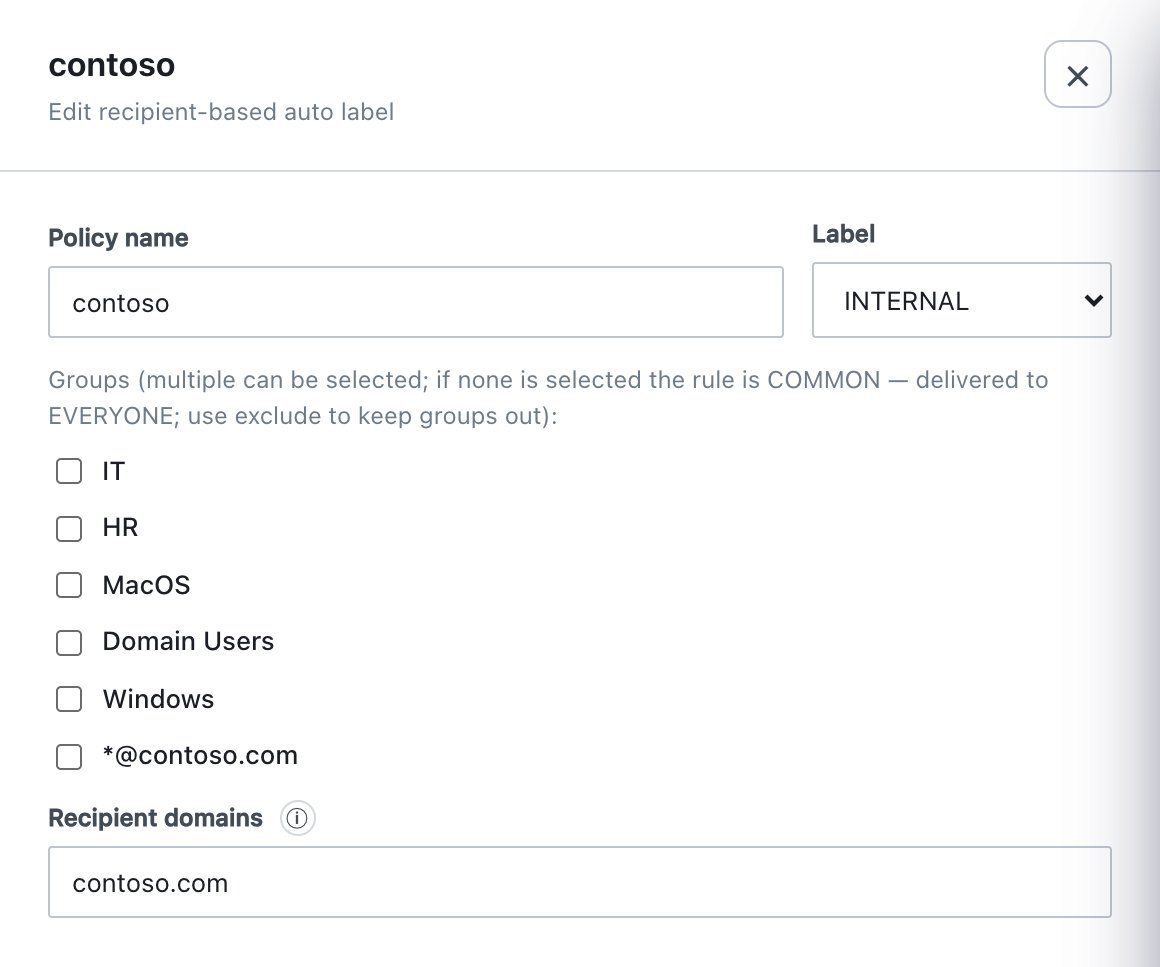
| Field | What it does | Default / allowed values |
|---|---|---|
| Policy name | Name in lists and audit. | New mail rule. Required at publish. |
| Label | Label applied when the rule fires. | The first label in your Labels list. Required — Save stays disabled without it (“Select a label to enable Save.”). |
| Groups | Same model as classification rules: none ticked = Common (everyone); ticked = only those groups. | None, or the group selected in Scope. |
| Recipient domains | Comma-separated domains,
e.g. contoso.com, contoso.com.tr. Lower-cased; a leading
@ is removed. |
At least one. Empty: “Enter at least one domain.” (the drawer still saves, but publishing is rejected). |
The Enabled switch and group exclusions are set in the list, not in the drawer. A new mail rule is enabled.
Matching rules
| Rule | Detail |
|---|---|
| Every recipient | All To, Cc and Bcc domains must be in the list. One outside recipient → the rule does not apply and the normal flow runs. |
| Exact domain | contoso.com does not cover eu.contoso.com;
list subdomains and country domains separately. Enter domains only — a
full address entered here never matches. |
| Unresolvable recipient | If any recipient cannot be resolved to an SMTP address (e.g. an unresolved Exchange entry), no mail rule applies. |
| Unlabeled messages only | A message the user (or an attachment) already labeled is never relabeled by a mail rule. |
| First rule wins | Mail rules are checked in list order; the first enabled rule whose domains cover all recipients decides. Avoid overlapping domain lists. |
| Disabled label | A rule whose label is disabled, or not delivered to the user’s group, is skipped. |
| Enforce is higher | If an Enforce rule requires a label higher than the mail rule’s, the mail rule is not used; the Enforce label is applied instead. |
| Recommendation is higher | If a Recommend rule (or AI) suggests a higher label, the rule does not override it silently: classic Outlook opens the classifier with the suggestion pre-selected (even with Require a label off); web clients apply the mail rule’s label and show “Based on its recipients this email was labeled”…“, but its content suggests”…“.” with Send anyway (sends with the rule’s label) and Choose label (opens the Ada panel). Clients without Mailbox 1.14 block once; sending again sends with the rule’s label. |
| Attachments still count | After the rule’s label is applied, the attachment gates run as usual (and may raise the label from an attachment). |
Creating a mail rule
- Policy → Rules → Outlook Rules. Choose Scope (Default or a group).
- Click + Add Default mail rule (or + Add mail rule to Group).
- Enter Policy name, choose Label, tick Groups if needed, and enter Recipient domains.
- Click Save, then Publish & Sign.
- Test: from a client, send an unlabeled message to an address in the domain — it should leave with the label and no window; add an outside recipient — the normal flow (classifier or block) should run.
Recipient lists compared
Three features use recipient lists; they look alike but do different things.
| Feature | Where | Effect when every recipient matches | Accepts |
|---|---|---|---|
| Mail rule Recipient domains | Outlook Rules | Applies the rule’s label to an unlabeled message. | Domains |
| Recipient exceptions (Outlook) | Classification rule drawer | Suppresses that classification rule (no recommend/enforce/mask/warn). | Domains and full addresses |
| Label send exceptions | Labels → label drawer (No-send label) | Allows a No-send label (on the message or an attachment) to be sent. | Domains and full addresses |
Worked examples
Example A — Any external recipient → require a label
Goal: internal mail flows without prompts; anything leaving the organisation must be labeled consciously.
- Email enforcement: tick Require a label before sending email, Save.
- Add a mail rule Internal mail: Label
Internal, Recipient domains
contoso.com, contoso.com.tr, contoso-group.com. - Publish.
Result: a message to colleagues only is labeled Internal silently. As soon as one external address is in To, Cc or Bcc, the rule no longer covers all recipients and the sender must choose a label (or an Enforce rule labels it).
Example B — Subsidiary mail labeled “Group Internal”
Mail rule Subsidiaries, Label Group
Internal, domains fabrikam.com, fabrikam.de,
Groups: Finance only. Finance users’ mail to
subsidiaries is labeled automatically; other groups are unaffected.
Example C — Never email Strictly Confidential documents outside
Chapter 8: mark Strictly Confidential as a No-send label
with send exception contoso.com. Here: Attachment
label check on, Label from attachments on.
Attaching such a document raises the email to Strictly
Confidential; sending to an outside recipient is blocked with the
list of recipients that are not allowed.
Audit events written by Outlook rules
| Event | Written when |
|---|---|
| Label applied (on send) | The sender chose a label in the send classifier (with suggestion details and, if any, the mail rule that asked). |
| Label applied (auto-rule) | A mail rule, an Enforce rule or an attachment labeled the message. |
| Label raised to meet policy | Classic Outlook raised the label to an Enforce requirement. |
| Send blocked — no label | The classifier was closed, or the web add-in required a label. |
| Send blocked — attachment label | An attachment outranked the email and could not raise it. |
| Send blocked — policy | The message’s own label is No-send for these recipients. |
| Blocked — enforcement | The content requires a different or higher label. |
| Sending allowed by recipient exception | A No-send label was let through by its send exceptions. |
| Sending allowed | Web add-in: every check passed. |
Troubleshooting
| Symptom | Check |
|---|---|
| Mail rule never applies | Is every recipient (including Bcc) in the domain list, spelled exactly (subdomains)? Is the message already labeled? Is the rule enabled, its label enabled and delivered to the user’s group? Is another rule earlier in the list matching first? |
| Classifier still opens for internal-only mail | Content suggests a higher label than the mail rule’s (by design), or a recipient could not be resolved. |
| Unlabeled mail with attachments is blocked although Require a label is off | Block unclassified attachments or a No-send attachment label — by design. |
| Changing Outlook send mode has no effect | Expected; the setting is not used by clients. |
| Web user can send without the classifier | The web add-in shows no classifier; with Require a label it blocks the send and offers Choose label in the Ada panel. Check that the Web add-in · Outlook module is on (section 10.6). |
| Group settings did not change after editing Default | Group settings are pinned at publish; edit them with the group selected in Scope. |