
6.3 Certificate
Administration → Settings → Certificate. Manages the two TLS certificates the server presents. They are completely independent; changing one never affects the other.
| Section (selector) | Badge | Port | Who sees it |
|---|---|---|---|
| Admin console | PORT 9443 | 9443 | Administrators’ browsers
(https://ada.example.com:9443/ada) |
| Clients / agents | PORT 443 | 443 | Agents, Office add-ins, manifests, setup scripts and installers |
Both start on a certificate issued by Ada’s internal CA
(/ada-root-ca.crt), which the setup scripts and installers
add to every client’s trust store.
Typical setup: install a corporate-CA certificate on Admin console and leave Clients / agents on the built-in CA.
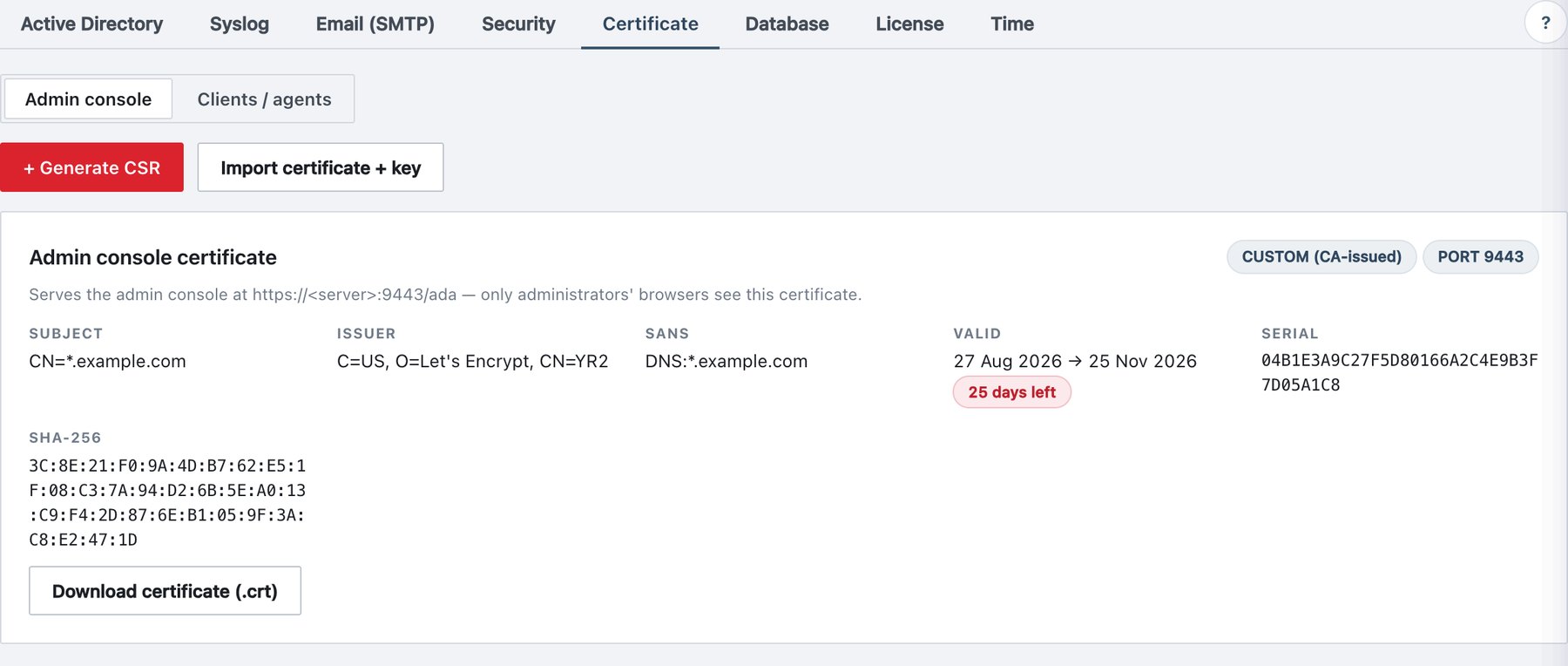
What the page shows
- A selector Admin console / Clients / agents (remembered per browser).
- Buttons + Generate CSR (or Continue certificate flow when a request is pending) and Import certificate + key. With a pending request, the hint A pending CSR exists for this section… and a Discard request link appear.
- The <section> certificate card with a mode badge (CUSTOM (CA-issued) or BUILT-IN (self-signed)) and the port badge. For a custom certificate: Subject, Issuer (marked self-signed where applicable), SANs, Valid (from → to, with a N days left badge that turns red under 30 days), Serial, SHA-256, and Download certificate (.crt) (certificate only; the private key never leaves the server).
Procedure A — CSR flow (recommended; the key never leaves the server)
- Select the section, then click + Generate CSR. The Certificate flow — <section> panel opens.
- Fill in step 1) Generate a CSR (see the field table) and click Generate CSR. The server creates a new RSA-3072 key and shows the CSR with Copy and Download .csr.
- Submit the CSR to your CA. With AD Certificate Services, for
example:
certreq -submit -attrib "CertificateTemplate:WebServer" ada-admin.csr. - Reopen the panel (the button now reads Continue certificate flow; the CSR and form values are kept on the server across reloads).
- In 2) Install the signed certificate, paste the issued certificate in PEM: server certificate first, then any intermediate CA blocks.
- For Clients / agents only: type your password in Confirm with your password.
- Click Install certificate and confirm the dialog. The web server applies the certificate within about 15 seconds without a restart.
Regenerate CSR replaces the pending key and CSR. Discard request deletes the pending key and CSR; the installed certificate is not touched.
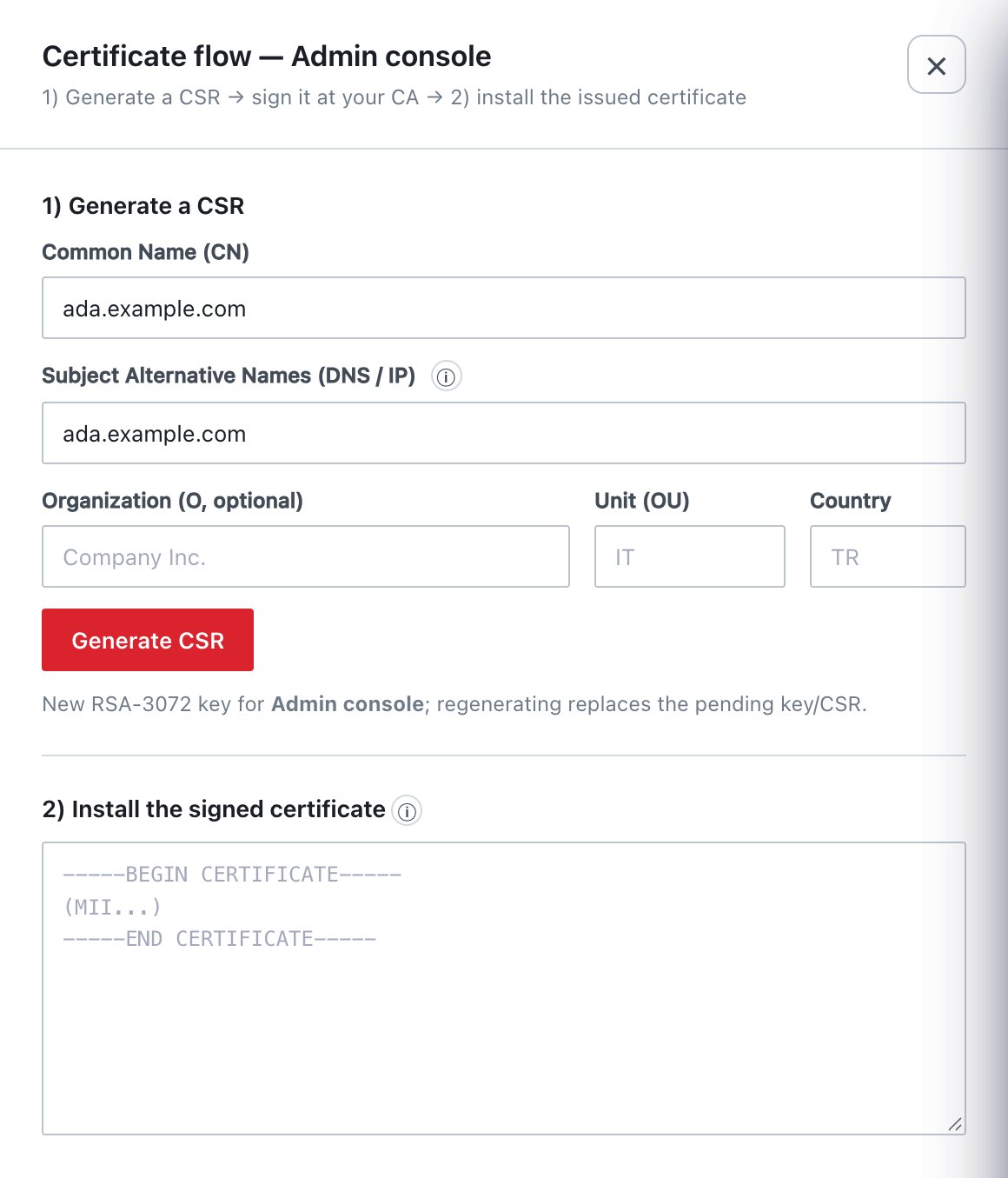
| Field | What it does | Default / allowed values |
|---|---|---|
| Common Name (CN) | Subject CN. Always added to the SAN list as well. | Pre-filled with the host name in your browser’s address bar. Required. |
| Subject Alternative Names (DNS / IP) | Additional names. Entries that look like IP addresses become IP SANs, all others DNS SANs. | Comma- or newline-separated. Pre-filled with the browser host name. |
| Organization (O, optional) | Subject O. | Optional. |
| Unit (OU) | Subject OU. | Optional. |
| Country | Subject C. | Optional; exactly 2 letters. |
| Certificate text (step 2) | The CA-issued certificate, PEM. | Must match the pending CSR key, or the currently active key (renewal with the same key). Must not be expired or valid only more than a day in the future; the first block must not be a CA certificate. |
| Confirm with your password | Re-authentication. | Clients / agents only; required. |
Line breaks or control characters in CN, O, OU or SANs are rejected. The CSR requests key usage digitalSignature, keyEncipherment and extended key usage serverAuth.
Procedure B — Import an existing certificate and key
Use this when your PKI already issued a certificate together with its private key.
- Select the section and click Import certificate + key.
- Paste or choose files for Certificate (PEM), Private key (PEM) and, optionally, Intermediate chain (optional, PEM).
- If the key is encrypted, enter Key passphrase (only if the key is encrypted).
- For Clients / agents, enter Confirm with your password.
- Click Import certificate + key and confirm. Nothing is written unless every check passes.
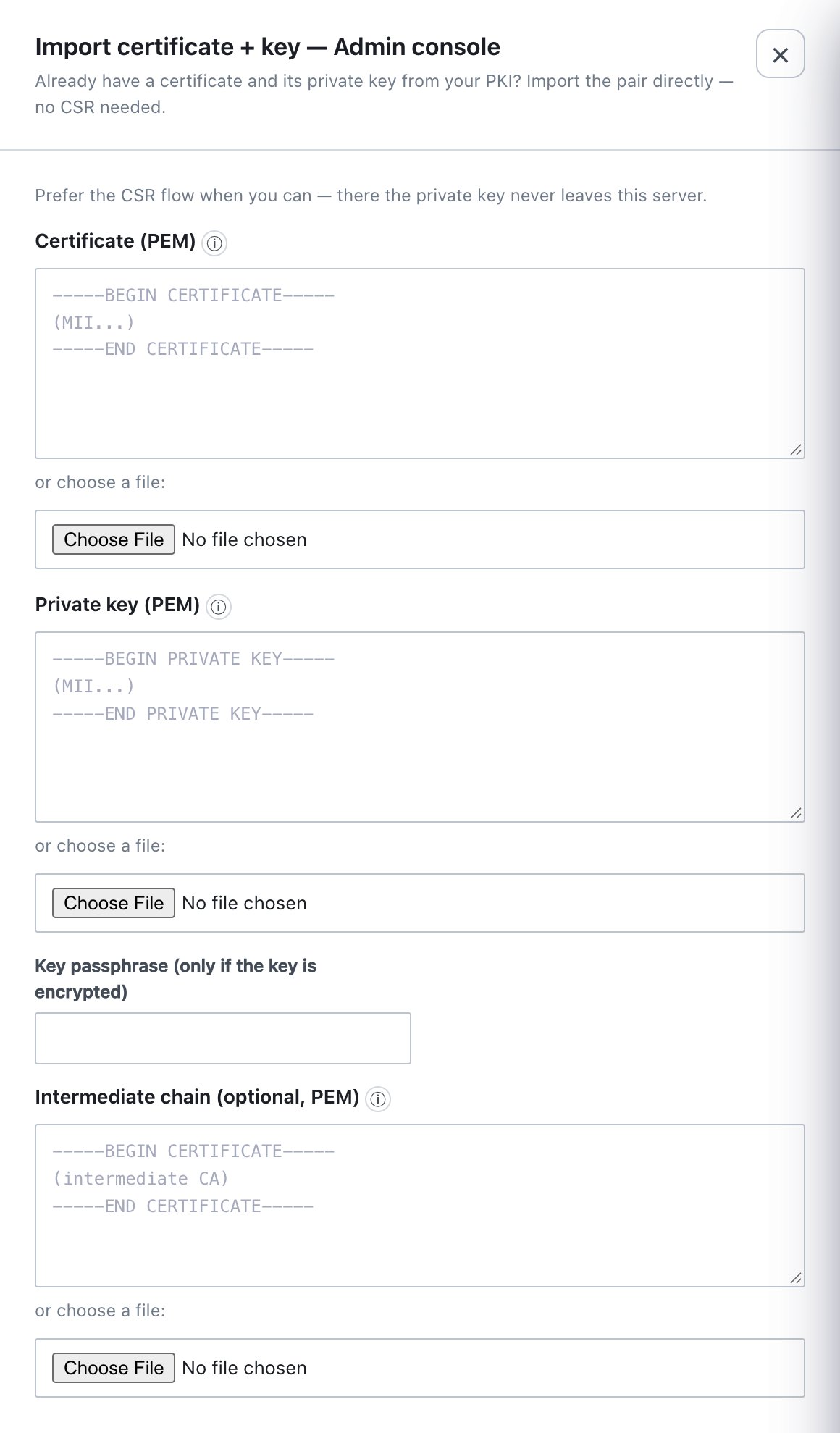
| Field | What it does | Allowed values |
|---|---|---|
| Certificate (PEM) | Server certificate first; intermediates may follow. | A private key pasted here is rejected. |
| Private key (PEM) | Key of the certificate. | PKCS#8, RSA or EC PEM. RSA ≥ 2048 bits; ECDSA P-256 / P-384. Stored decrypted with owner-only permissions; never shown again. |
| Key passphrase | Decrypts an encrypted key. | Only for encrypted keys. |
| Intermediate chain | Intermediate CA certificates. | Any order; they are re-ordered. A root certificate is left out of the served chain. |
| Confirm with your password | Re-authentication. | Clients / agents only. |
The server checks that the key matches the certificate, that the certificate and intermediates are within their validity, and that the chain belongs to the certificate. The result message lists Note: and Warning: lines, for example: the certificate is self-signed, expires within 30 days, does not cover the server’s DNS name, a supplied certificate did not belong to the chain and was dropped, the root was left out, or no intermediate was supplied. A name mismatch is a warning only; the certificate is imported anyway. A pending CSR of the same section is discarded by a successful import.
Behaviour and cautions
- Both procedures apply via hot reload in about 15 seconds; no connections are dropped.
- Clients / agents: replace this certificate only if every endpoint trusts the issuing CA (Windows: machine Trusted Root store; macOS: System keychain). Otherwise agents and add-ins stop syncing. Installing or importing for this section always requires your password.
- The console has no button to revert a section to the built-in certificate.
- The internal root CA lives on the server host, not in the console,
and is not part of console backups. Manage it as root with
sudo adactl ca status|backup|restore|rotate. After a rotation, rerun client setup (installer, SCCM package or script) on endpoints; until then they do not trust the new root. - Certificate expiry is monitored for both sections and for the internal root CA: warning at 30 days, error at 7 days, critical when expired, repeated at most once a day per band. These appear in System and raise Service health alerts.
- Audit events:
tls_csr_generated,tls_csr_discarded,tls_cert_installed,tls_cert_imported(with warnings and fingerprint).