13.3 The agent detail drawer
Click a hostname to open the drawer on the right. -
Title: the hostname. - Subtitle:
<user> · online|offline. - Close:
the ✕ in the header.
The drawer has these sections, top to bottom.
13.3.1 Policy group
| Field | What it does | Default / allowed values |
|---|---|---|
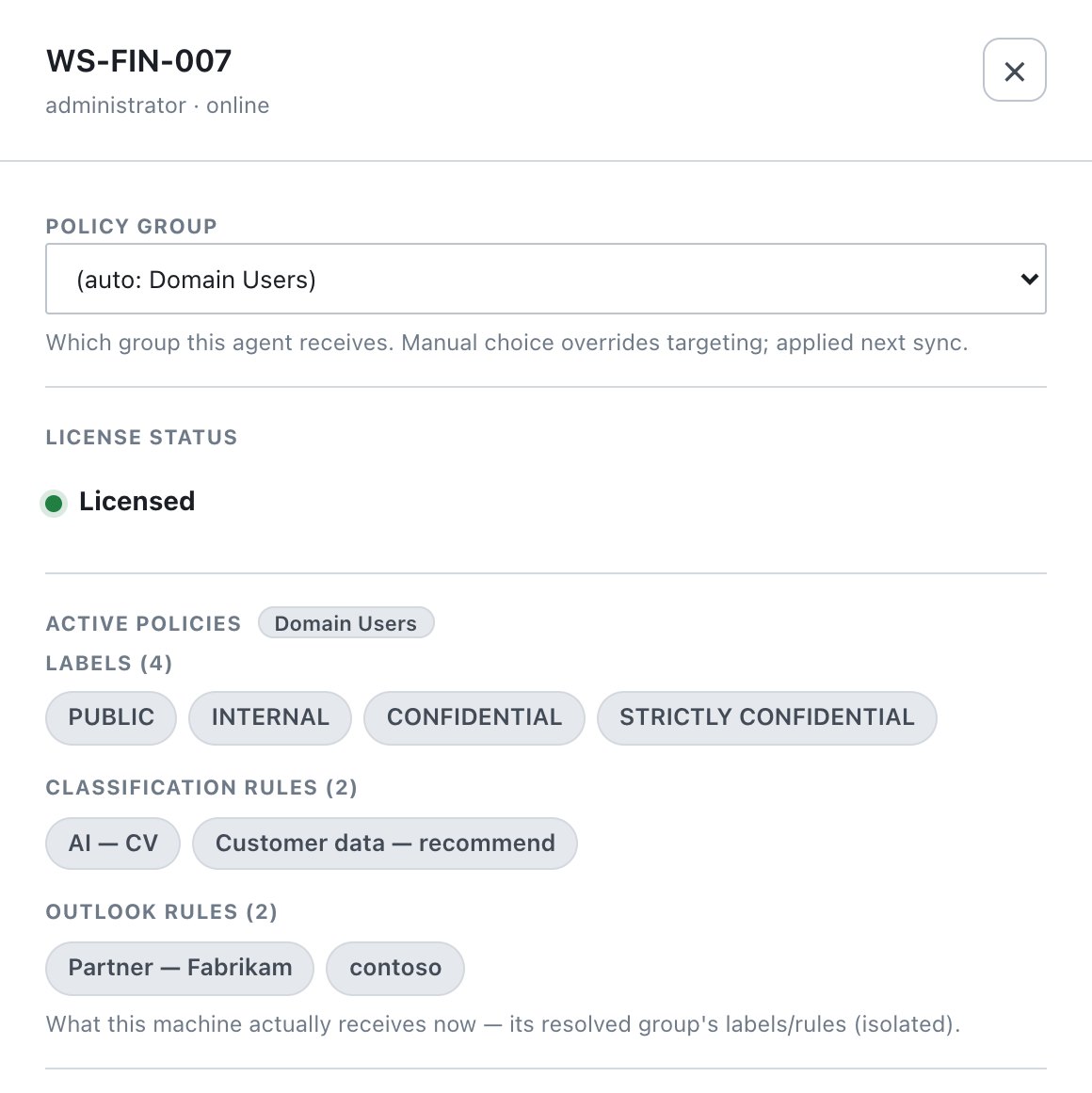
| Policy group (select) | Which group’s labels, rules and enforcement this agent receives. A manual choice overrides automatic targeting. | First option: Default (no group matches), or
(auto: |
Behaviour: - Selecting a group assigns it manually.
The banner reads “agent_group_assigned, with
the group ID or → Default in Recent activity.
Group resolution order on the server: 1. Manual assignment. 2. The first enabled group in list order whose target matches (host pattern, OS, AD group/user/computer, or mail address). 3. Default.
13.3.2 License status
Same values as the License column:
Licensed, Passive, Over
limit, or —.
13.3.3 Active policies
What this machine actually receives now, computed by the server for the effective group (the subtitle shows the group name or “Default”). It is the same resolution the agent gets, including group-specific label overrides. Three chip lists:
| List | Contents |
|---|---|
| Labels (n) | Label names delivered to this machine |
| Classification rules (n) | Rule (data type) names |
| Outlook rules (n) | Mail rule names |
Use this to answer “why does this user see / not see label X?” without touching the client.
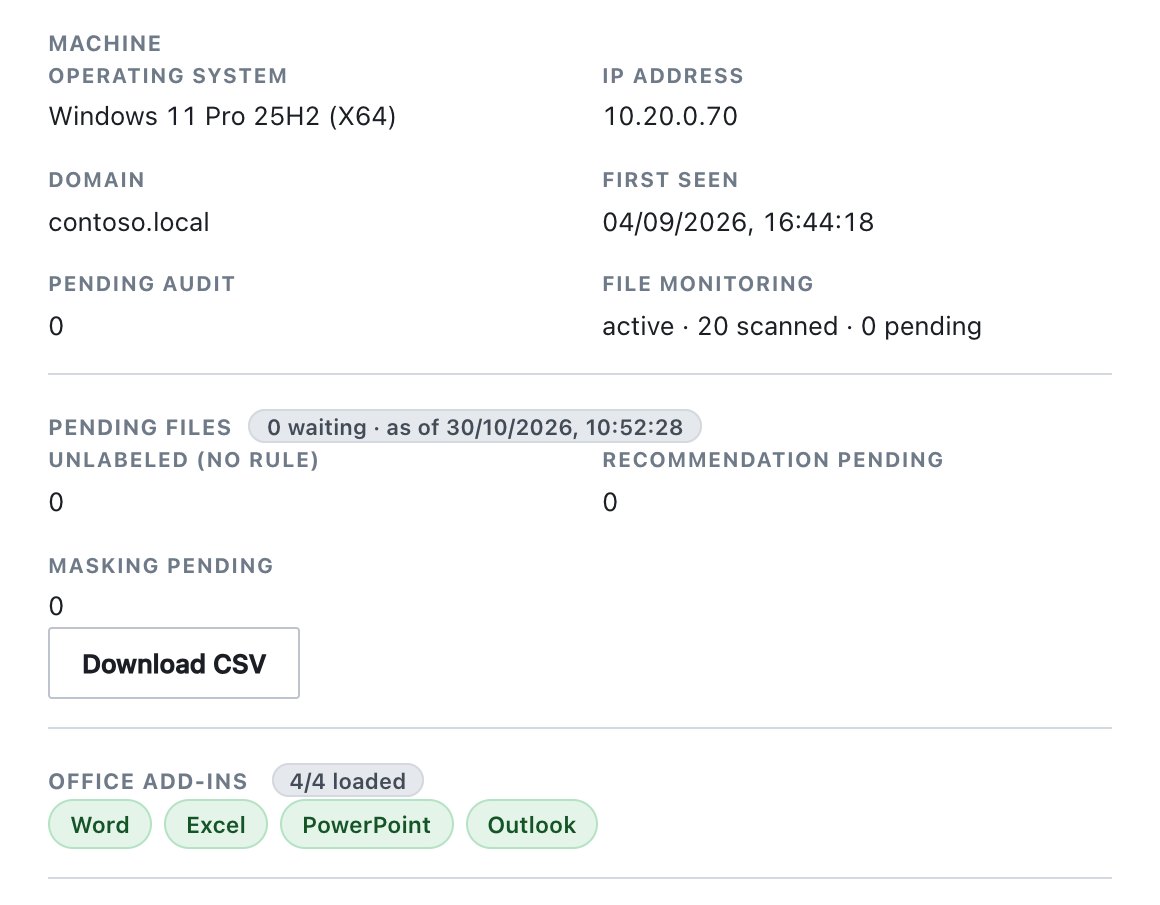
13.3.4 Machine
| Field | Meaning |
|---|---|
| Operating system | OS and architecture |
| IP address | Source address of the last heartbeat |
| Domain | Reported domain |
| Mailbox | Shown only if known. The mail address used for mail-type group targets, labelled (Active Directory) or (Outlook profile) depending on the source. |
| First seen | First heartbeat |
| Pending audit | Audit records queued on the agent and not yet uploaded. A persistently high number means upload problems. |
| File monitoring | active · N scanned · M pending,
off (policy), not installed, or
— |
13.3.5 Pending files
The files on this machine still waiting for: - a label (no rule matched), - a recommendation decision, or - masking.
This is what the agent reports now, not audit history. A file drops off as soon as it is labelled, masked, moved or deleted.
| State | Shown |
|---|---|
| Opt-in switch off | “Inventory reporting is off — turn on”Pending files inventory” under Policy → Rules → Logs (desktop agent) and publish.” |
| On, not yet reported | “Not reported yet — the agent sends its list with the next heartbeat after it receives the policy.” |
| Reported | Header N waiting · as of <time>. Counters
Unlabeled (no rule), Recommendation
pending, Masking pending. The first 50 files
with a pill (unlabeled, the recommended label, or
mask; hover for the full path). Then Download
CSV (ada-pending-files-<host>.csv, full
list). |
The inventory carries only file names and folders. It is sent compressed, with no size limit. The same data feeds the Unlabeled Files (current) report. The Pending files inventory switch is off by default.
13.3.6 Office add-ins
One pill per Office app reported by the agent. The header shows
loaded/total.
| Pill | Meaning |
|---|---|
Word (green) |
Registered and loading (LoadBehavior=3). The tooltip
shows the DLL version. |
Excel · disabled |
Registered but disabled (LoadBehavior=2) |
PowerPoint · not registered |
Not registered (for example an /AGENTONLY install) |
macOS agents have no COM add-ins and show —.
13.3.7 Recent activity
A merged timeline, newest first, showing 8 entries. If there are
more, it ends with “…and N older”. It combines: - the agent’s last 10
commands, each with a live status: pending,
applied or FAILED, plus the issuer, the time
and the agent’s result message - lifecycle events:
| Entry | Audit event |
|---|---|
Policy group changed (→ <group> /
→ Default) |
agent_group_assigned |
| Removed from console | agent_deleted |
| One-time uninstall token issued | uninstall_token_issued |
| Uninstall authorized | uninstall_authorized |
| Uninstall completed | uninstall_completed |
| Uninstall attempt rejected | uninstall_attempt_failed |
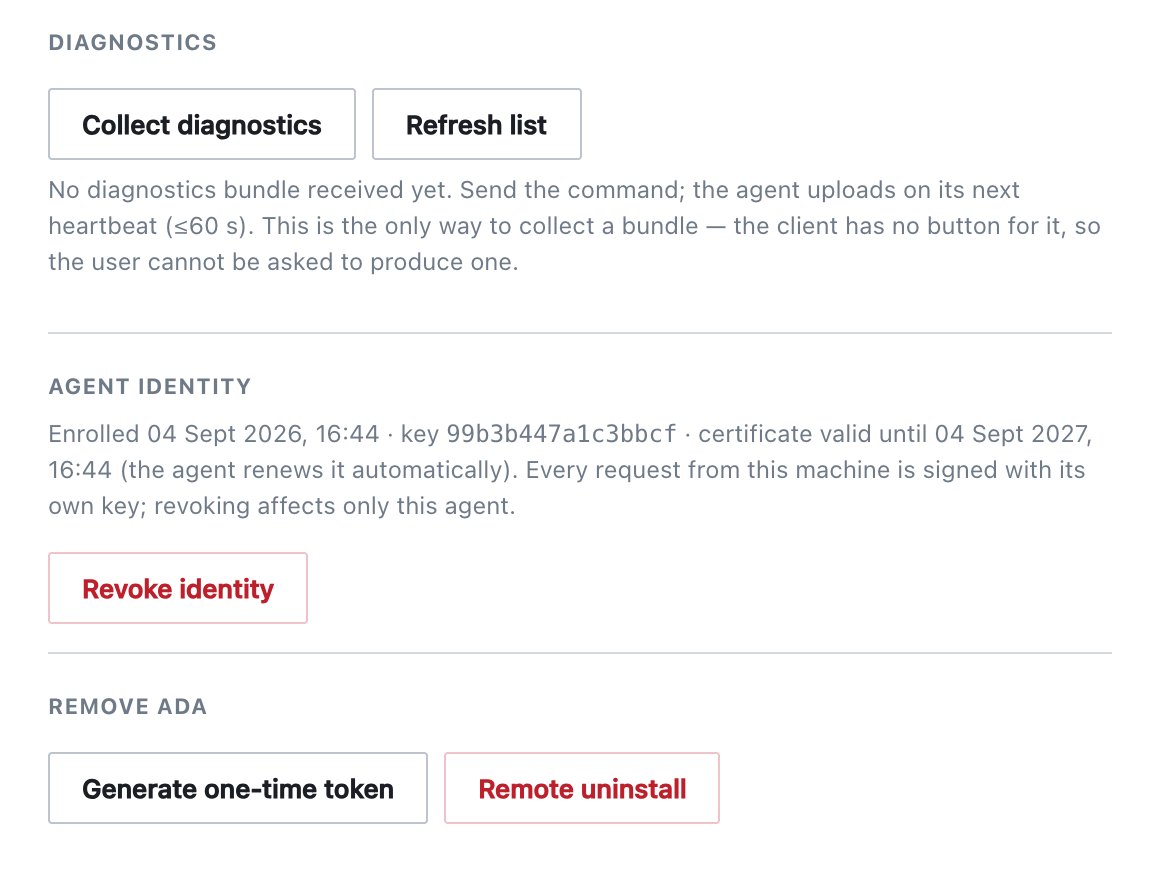
13.3.8 Diagnostics
This is the only way to collect a support bundle. The client has no button for it, so you cannot ask the user to produce one.
- Click Collect diagnostics. The command is queued.
- On its next heartbeat (≤60 s) the agent uploads a zip:
- Windows: logs, versions, Office add-in registration, services, Event Log tail, and a network self-test.
- macOS: also the
ada-agent doctoroutput and launchd status.
- Click Refresh list. Each bundle shows its name, size and received time. Click the name to download.
- Click × to delete a bundle. You are asked to
confirm, and the deletion is audited as
agent_diagnostics_deleted.
The server keeps the last 3 bundles per agent for
30 days, with a global cap. Upload is audited as
agent_diagnostics_received.
13.3.9 Agent identity
| State | Shown | Action |
|---|---|---|
| Enrolled | “Enrolled |
Revoke identity |
| Revoked | “Identity revoked |
— |
| Legacy | “This agent uses the shared setup token (legacy). It enrolls automatically once upgraded to 1.2.0 or later.” | — |
How identities work: - Each agent generates its own key on the endpoint and enrols once with the setup token. - The server issues a certificate valid for one year. - The agent renews it automatically 30 days before expiry. If a renewal is missed, it re-enrols with its stored token, waiting for approval if approval is on.
Revoke identity (confirmation required) cuts off only this machine. It is rejected on its next request and must re-enrol. Use it when a machine’s key may be stolen. The rest of the fleet is untouched.
13.3.10 Remove Ada
| Button | Effect |
|---|---|
| Generate one-time token | Issues an uninstall token for this machine only,
valid 24 hours. The drawer shows it in a text box with
the instruction “Run Ada.Uninstall.exe -token <below>
on the machine”. Windows only; on macOS use the uninstall password or
Remote uninstall. Audit uninstall_token_issued. |
| Remote uninstall | After the confirmation “REMOTE UNINSTALL: Ada will be fully removed
from uninstall command. The
machine removes Ada within ~60 s. No uninstall password is needed on the
machine. Works on Windows and macOS. |
If Issuing a remote agent uninstall is ticked under Administration → Settings → Security → Sign-in & access → Actions that require your password, both buttons ask for your console password first. The server enforces this, not just the console.