
10.4 Awareness
Policy → Rules → Awareness schedules short reminder messages (for example data-protection reminders) that pop up on every managed machine at an interval you choose. Messages are delivered inside the signed policy and can be targeted to groups.
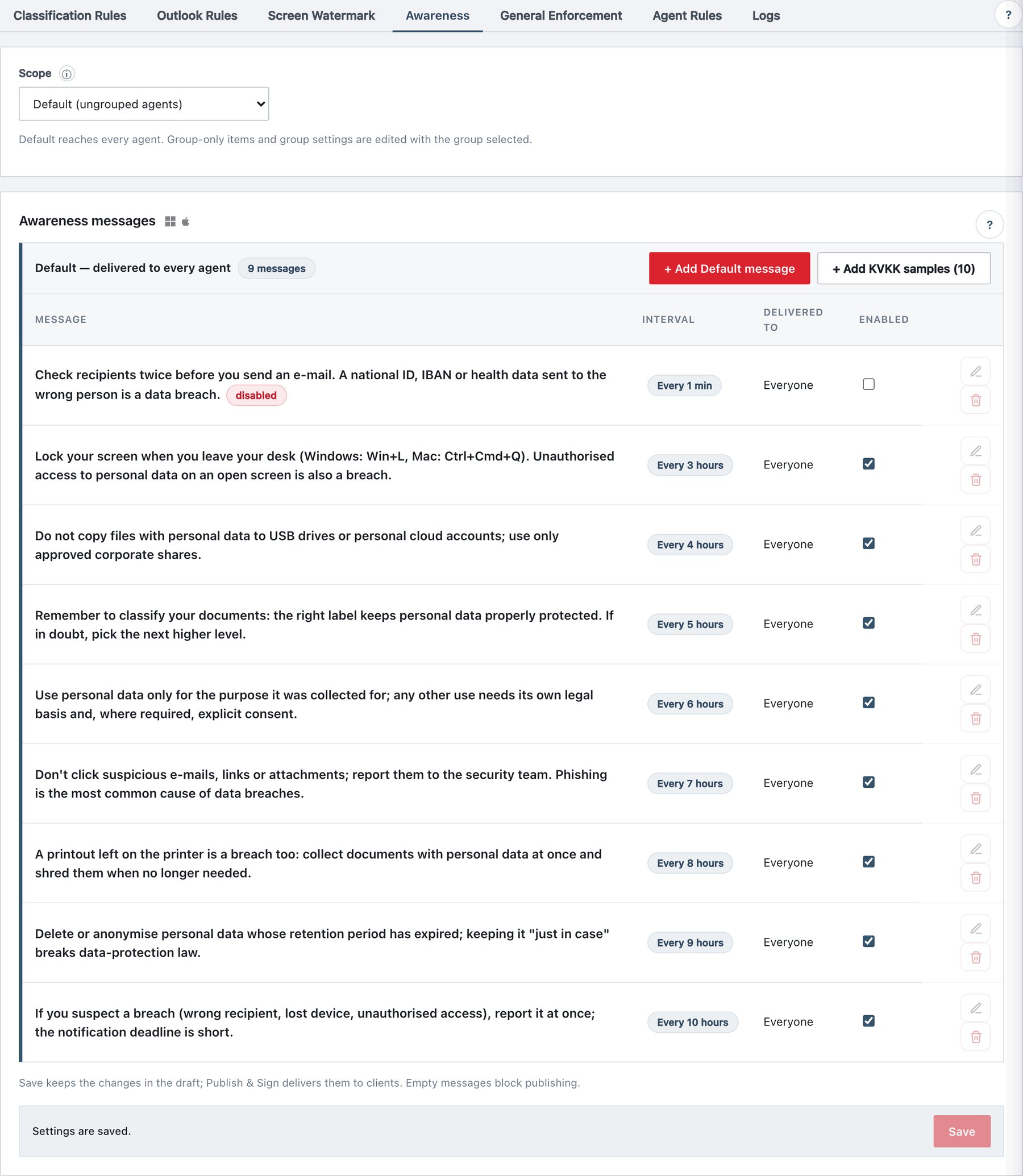
10.4.1 What the page shows
Card title Awareness messages (Windows and macOS icons). The list uses the same Default / group bands as the rule lists (section 10.3.1).
| Column | Content |
|---|---|
| Message | The text. An empty text shows (empty — blocks publishing) in red. A disabled badge when switched off. |
| Interval | Badge: Every 15 min, Every 1 hour,
Every 2 hours, Daily, Weekly,
… |
| Delivered to | Everyone, Only Finance,
Everyone except HR, … |
| Enabled | Checkbox (Disabled messages are not shown); locked on inherited rows. |
| (actions) | Edit (opens the drawer), Delete (confirm Delete this awareness message?), or Exclude / Edit in Default → / Include again in a group scope. |
Buttons:
- + Add Default message / + Add message to Group — opens the drawer.
- + Add KVKK samples (10) — inserts ten ready-made Turkish-language reminders about personal-data protection (KVKK), staggered one hour apart (1 h, 2 h … 10 h) so they never fire together. In a group scope they are targeted to that group. Edit or delete them freely.
- Save (settings bar at the bottom, You have unsaved settings changes. / Settings are saved.).
10.4.2 Awareness message drawer
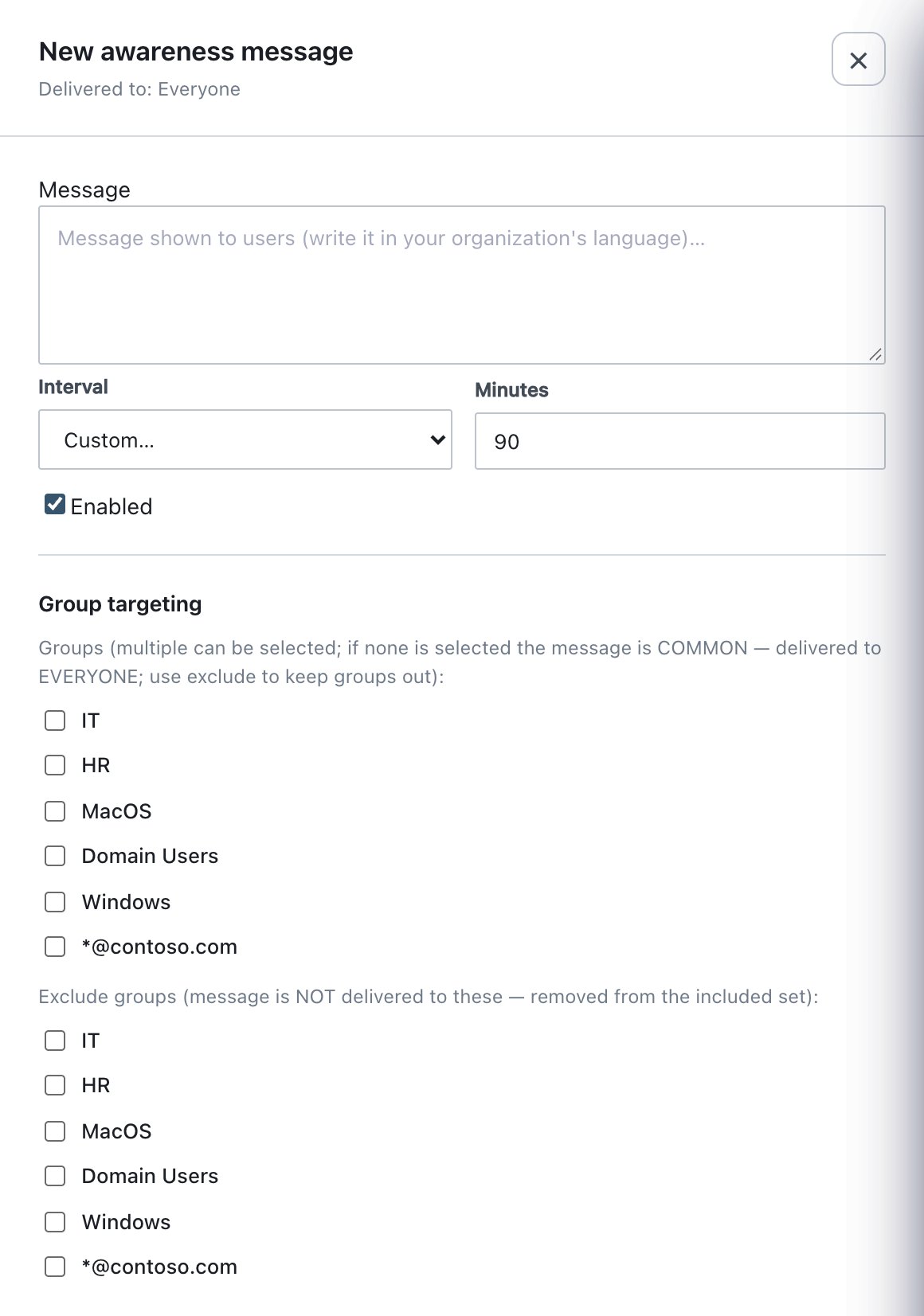
Title New awareness message / Awareness message; subtitle Delivered to: …. Save is disabled until text is entered (Enter the message text to enable Save.).
| Field (UI text) | What it does | Default / allowed values |
|---|---|---|
| Message | Text shown to end users exactly as written — write it in your organisation’s language. | Required; maximum 500 characters (checked at publish). |
| Interval | How often this message is shown on each machine. | Every 1 hour (60 min) for new messages. Presets: Every
1 min, Every 15 min, Every 30 min, Every 1 hour, Every 2 hours, Every 4
hours, Every 8 hours, Daily, Weekly, Custom… |
| Minutes | Appears with Custom…. | 90 when Custom is first chosen; integer 1–43200 (30 days). |
| Enabled | Off = not shown. | On. |
| Group targeting | Include groups (none = Common, every machine) and exclude groups (exclusion wins). | In a group scope the new message targets that group. |
10.4.3 Procedure — roll out a monthly reminder to one department
- Policy → Rules → Awareness, set Scope to the department (for example Finance).
- Click + Add message to Finance, type the text.
- Interval → Custom…,
Minutes =
43200. - Click Save in the drawer, then Save on the tab, then Publish & Sign.
10.4.4 How clients show awareness messages
| Aspect | Windows | macOS |
|---|---|---|
| Component | AdaNotify (tray app in each user session) | Per-user agent + Ada menu bar helper |
| Check frequency | Every minute | Once per Sync interval (default 300 s) — a message is never shown more often than the sync interval allows |
| Appearance | Ada’s own notification card, bottom-right of the working area, 10 s, title Ada Data Classification | Ada’s own card, top-right, 6 s |
| Do Not Disturb / Focus | Not affected — the card is drawn by Ada, not by the OS notification system, and never takes keyboard focus | Not affected, same reason |
Scheduling rules (shared code on both platforms):
- The clock starts when the machine first receives the message. A newly published message is not shown immediately; the first appearance comes one interval later. Publishing five messages therefore does not fire five notifications at once.
- At most one awareness message per check (per minute on Windows, per sync on macOS). If several are due, the one that has waited longest is shown first; the others follow on later checks.
- A newer awareness card replaces the older one. If a card is still on screen (or queued — for example after the machine was locked or asleep), the new one closes it and drops queued awareness cards, so the user never sees a burst of reminders on wake-up. Other notifications (label results, warnings, pending-files list) are not affected.
- Last-shown times are kept per user
(
awareness-state.json). Deleting or disabling a message removes its entry; re-enabling it restarts its interval. - The interval is per message and per machine/user — there is no fleet-wide synchronised time.