
8.8 Restrictions
Restrictions are enforced by the Office add-ins and the agents. Each restriction can be changed per group (section 8.9).
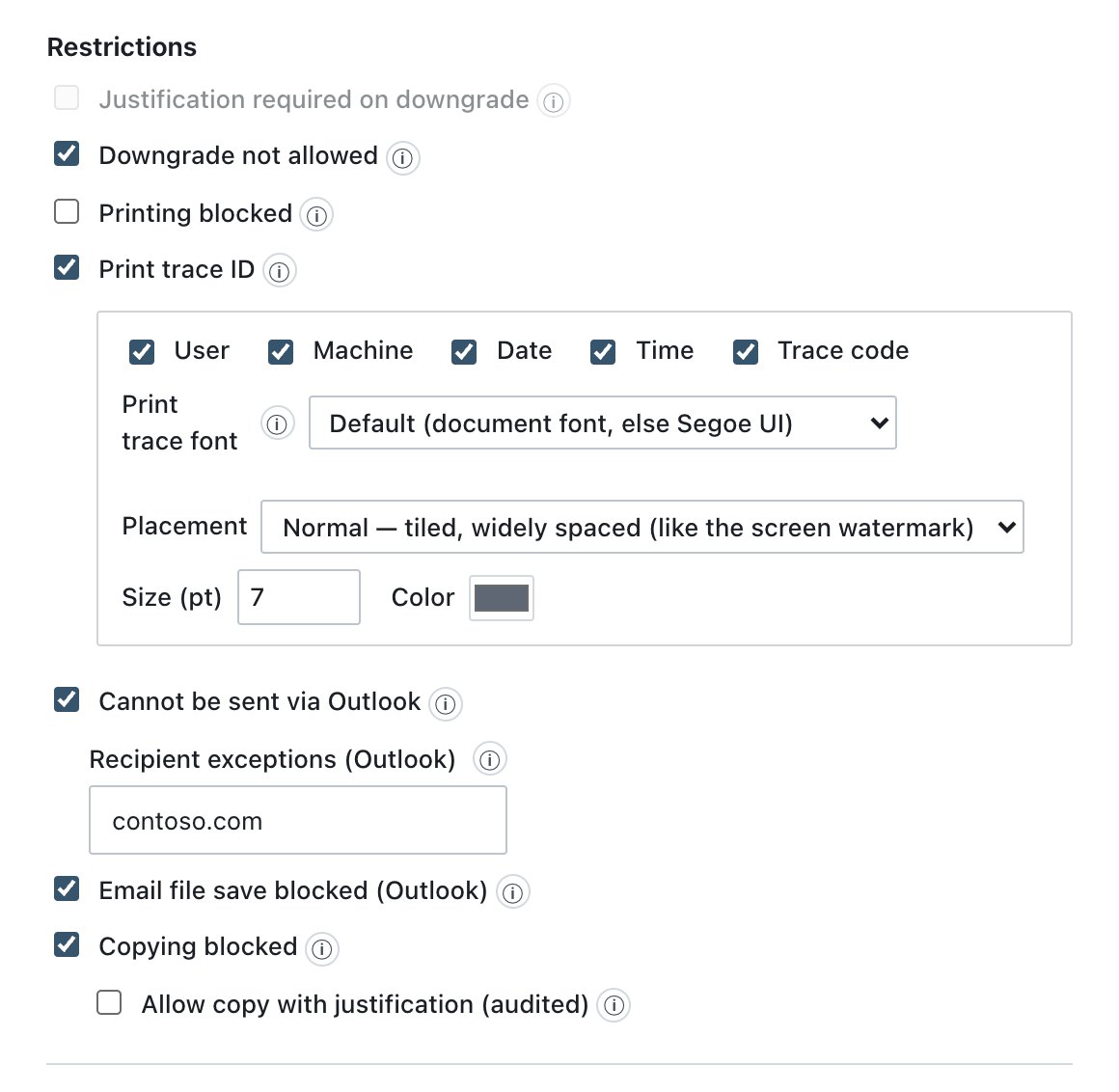
| Restriction | Effect | Platforms | Audit event |
|---|---|---|---|
| Justification required on downgrade | A user who moves content from this label to a lower one must type a reason. The minimum length is set in Administration → Settings → Security (default 10 characters). The reason goes to the Audit Log only, never into the file. Disabled and cleared while Downgrade not allowed is on. | Windows add-ins, right-click tool, macOS agent picker, Office web panels | Label downgraded (with the justification) |
| Downgrade not allowed | Content with this label can never move to a lower label, not even with a justification. Overrides the setting above. | As above | Downgrade blocked |
| Printing blocked | Printing is cancelled with a message. In PowerPoint the attempt is only logged, not stopped, because of a limitation of the PowerPoint object model. Classic Outlook also blocks printing of email with this label. | Windows: Word, Excel, classic Outlook (PowerPoint logs only) | Print blocked — policy; Printing logged (PowerPoint) |
| Print trace ID | Every printed page gets a temporary trace line or pattern (see below). It is removed right after printing and never saved in the file. Only used when printing is allowed. | Windows: Word, Excel, PowerPoint, classic Outlook. Not on the web, the new Outlook or Mac. | Print traced |
| Cannot be sent via Outlook | Email that carries this label, or that has an attachment with this label, cannot be sent. | Classic Outlook and the Outlook web add-in | Send blocked — policy / Send blocked — attachment label |
| Recipient exceptions (Outlook) | Shown when the send block is on. Sending is allowed only if every recipient (To, Cc and Bcc) is covered by an entry. | Same as above | Sending allowed by recipient exception |
| Email file save blocked (Outlook) | Blocks File > Save As for email in the Outlook interface. Documents are not affected. A Save As done through automation or COM is outside this control. | Classic Outlook | Save blocked — policy |
| Copying blocked | Blocks Ctrl+C, Ctrl+X, the ribbon and the right-click menu inside Office. Not covered: screenshots, and copying from applications outside Office. | Windows: Word, Excel, PowerPoint, Outlook | Copy blocked — policy |
| Allow copy with justification (audited) | Shown when copying is blocked. The user can still copy after typing a business justification. The justification goes to the Audit Log, never into the file. | As above | Copy allowed with justification |
Recipient exception entries are domains
(contoso.com) or full addresses
(j.smith@contoso.com), separated by commas. Matching is
exact: contoso.com does not cover
mail.contoso.com. A single recipient who is not covered
keeps the block. The check covers the email’s own label and its
attachments. The list is kept when you untick the restriction, and used
again when you tick it.
Print trace ID options (shown when the box is ticked):
| Field | What it does | Default / allowed values |
|---|---|---|
| User, Machine, Date, Time, Trace code | Which items the trace line contains. | All on. |
| Print trace font | Font of the trace. | Default (document font, else Segoe UI). Default uses the document’s Normal style so the trace blends in. Same font list as markings. |
| Placement | Footer line — one line at the bottom of every page; Normal — tiled, widely spaced (like the screen watermark); Dense — tighter tiling; a cropped page still keeps a full line; Full — heavy coverage; maximum forensic robustness. | Footer line |
| Size (pt) | Trace text size. | 7. Whole number from 6 to 12. |
| Color | Trace colour. | #6B7280 (grey). |
The trace code looks like WYNLYW-8K2Q. The first six
characters are that user’s daily screen-watermark code and the rest
identifies the print job. To find out who printed a page, search the
code in the Audit Log (search in Trace) or
with ⌘K. The Print traced record carries the printer, the page
count and the placement.
In classic Outlook, email with a trace label is printed by Ada through a hidden Word copy. Ctrl+P asks for the printer, Quick Print uses the default printer, the Print page of the File menu is hidden for such email, and several selected messages are printed one at a time.