
15.4 Reports
Reports → Reports produces formatted reports from the audit log (and, for two report types, from the live agent inventory). Each report can be downloaded, e-mailed once, or sent automatically on a schedule.
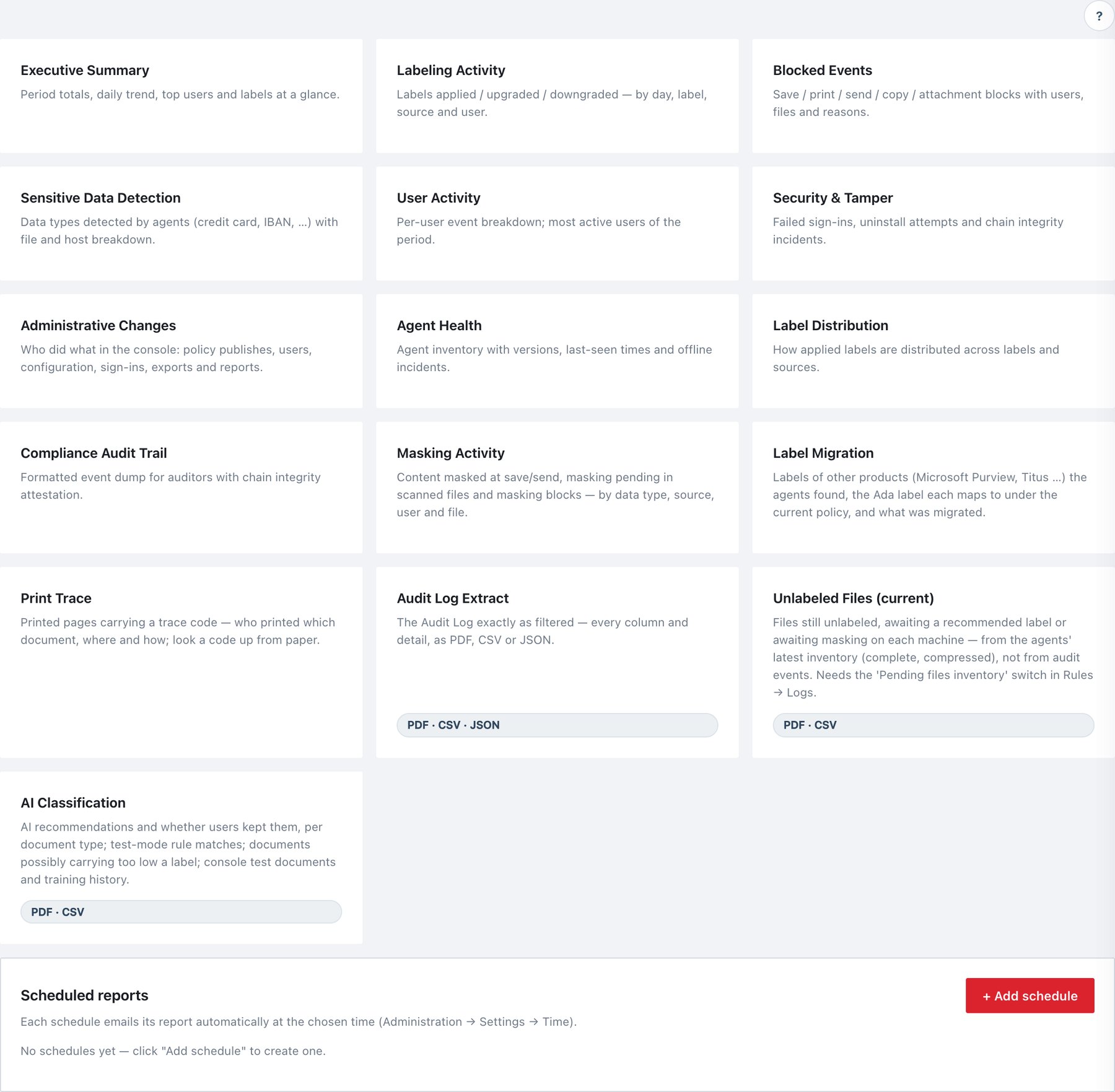
15.4.1 Report types
| Report | Answers | Formats | Main contents |
|---|---|---|---|
| Executive Summary | How did the period go overall? | Totals, critical/high counts, licence state, events by severity, volume by category, trend, top users, top blocked users, top labels, per-category event breakdowns. | |
| Labeling Activity | Which labels were applied, raised or lowered, by whom and where? | Labeling events by type, by label, by source, top users. | |
| Blocked Events | What did policy stop? | Blocks by type, top users, event list with users, files and reasons. | |
| Sensitive Data Detection | Which data types were found, where? | Top detected types (match counts), by host/source, top files. | |
| User Activity | Who is most active? | Distinct users; top 20 users with Labeled / Recommended / Blocked / Security / Total. | |
| Security & Tamper | Was protection attacked? | Security events by type, failed sign-ins by user (IP), all security events, screen-watermark evidence (viewer, machine, file, trace, mode), Office add-in disable attempts with outcome. | |
| Administrative Changes | Who changed what in the console? | Administration-category events (including console AI actions) by type and as a full list (time, event, by, detail). | |
| Agent Health | Is the fleet healthy and current? | Inventory (host, user, OS, agent version, policy, add-ins, enabled, last seen), offline incidents, version distribution against the server version, policy drift, Office add-in coverage. | |
| Label Distribution | How are labels spread? | Applied labels, labels by source. | |
| Compliance Audit Trail | Evidence for auditors. | Attestation, Downgrades & justifications table (flags downgrades without a justification), full event log. | |
| Masking Activity | What was masked or is waiting for masking? | Masking events by type, top data types, by source, top users, top files. | |
| Label Migration | Which labels of other products (Microsoft Purview, Titus …) exist, and what do they map to? | Foreign labels found (files, machines, mapped Ada label under the policy published now), migrated by save / send / bulk tool. | |
| Print Trace | Who printed which document, where? | Print jobs with trace codes, by application, top users, by placement, printers. | |
| Audit Log Extract | The Audit Log exactly as filtered. | PDF, CSV, JSON | Records by category; the records with the columns you choose (section 15.4.3). |
| Unlabeled Files (current) | Which files are still waiting for a label, a recommendation decision or masking, per machine? | PDF, CSV | Reads the agents’ latest pending files inventory, not the audit log, so the date range does not apply. Requires the opt-in Pending files inventory switch under Policy → Rules → Logs. |
| AI Classification | What did the AI classifier recommend and what became of it? | PDF, CSV | Recommendations kept / changed / dismissed, labels enforced by AI rules, per document type with confidence, test-mode matches, possibly under-labeled documents (AI at least 90 % sure of a type whose rule recommends a higher label), console test documents, training history. CSV = the raw records in scope. |
Every PDF starts with a Scope & integrity section: records in scope (and TRUNCATED if a server cap applied), the filter, the chain integrity result and the chain anchor. Table cells and labels wrap rather than being abbreviated.
15.4.2 Generating a report
- Click a report card. The side panel opens.
- Under Date range choose Today, Last day, Last 7 days, Last 30 days (default) or Last 90 days, or set From / To.
- Optionally set Scope (optional) (below).
- For reports with more than one format, choose the format in the footer.
- Click Generate PDF (or Generate CSV/JSON). When it is ready, a Download … (N KB) button appears in the footer, and the panel shows the record count.
- To e-mail the same report, fill Recipients (comma-separated) — pre-filled with your account e-mail — and click Send email.
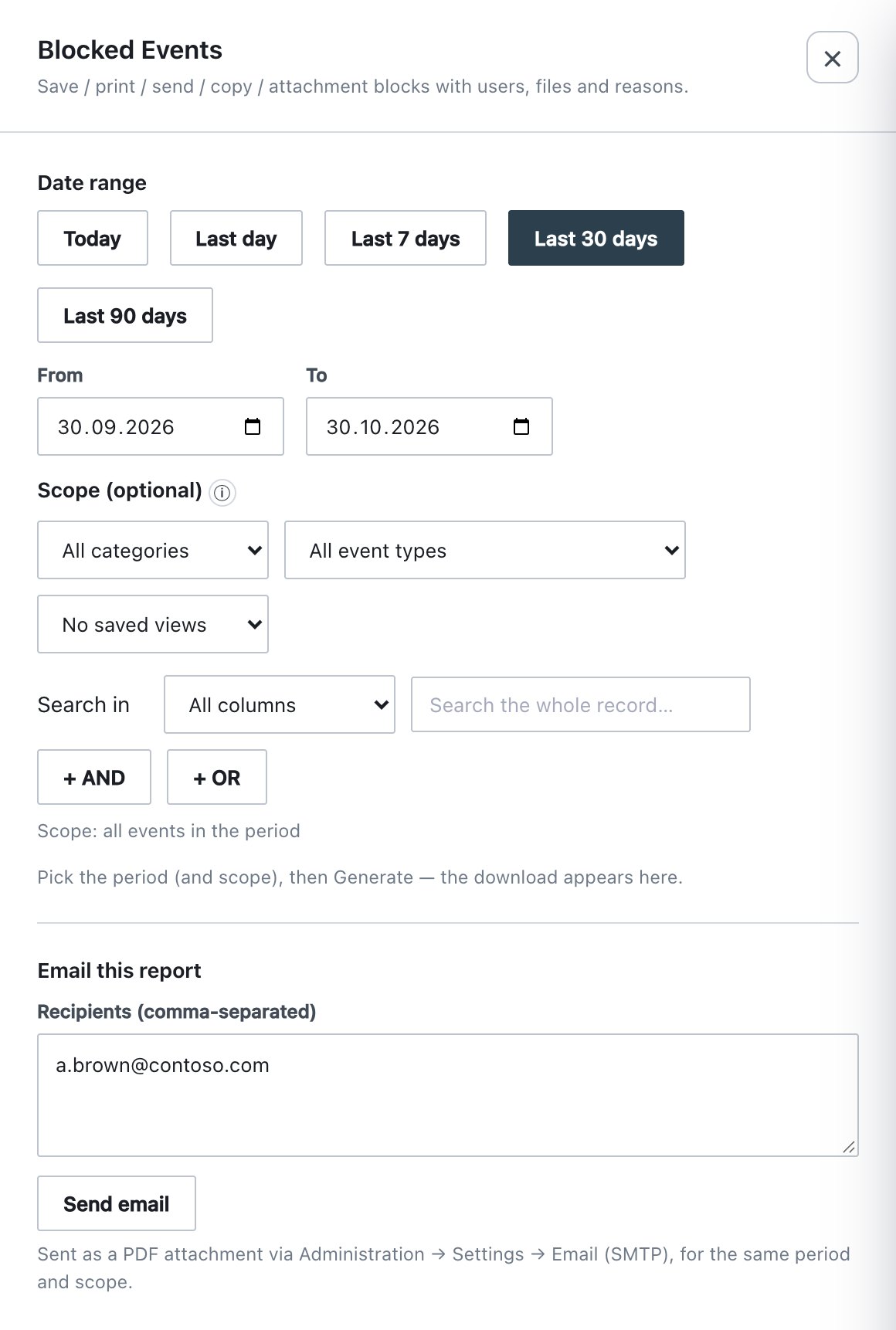
| Field | What it does | Default / allowed values |
|---|---|---|
| Date range presets | Set From/To. | Today · Last day · Last 7 days · Last 30 days · Last 90 days |
| From / To | Custom period, whole days in the configured time zone. From must not be after To. | today − 30 … today |
| Category / Event type | Same pickers as the Audit Log. | All |
| Apply a saved view… | Copies a saved Audit Log view into the scope (its dates are ignored; the report period wins). | — |
| Search in rows | Same AND/OR builder as the Audit Log. | empty |
| Clear scope | Empties the scope. | — |
| Format | Output format. | PDF; CSV/JSON only where listed |
| Columns | Audit Log Extract only (section 15.4.3). | — |
| Recipients (comma-separated) | E-mail addresses; separate with commas, semicolons or new lines. Max 20. | your account e-mail |
- Generation is limited to 30 requests per minute per user.
- E-mail uses the SMTP server under Administration → Settings → Email. The subject is ADA Report — <report> (from → to); the body states the period, filter and record count.
- Every download writes
report_generated; every e-mail writesreport_emailed(with recipients, filter, columns and count).
There is no fixed record limit. Very long periods produce large
files; narrow the period or use CSV/JSON. If the server operator has set
a cap (ADA_REPORT_MAX_RECORDS for PDF,
ADA_EXPORT_MAX_RECORDS for CSV/JSON), the panel and the
cover say the report was truncated to the newest records.
15.4.3 Audit Log Extract columns
For Audit Log Extract, the Columns block lets you choose the table columns from the same 29-column catalogue as the CSV export (section 15.3.6). Columns always appear in catalogue order.
| Format | Default selection |
|---|---|
| Seq, Time, Event name, Severity, Label, User, Machine, File / item, Detail | |
| CSV | All columns |
| JSON | Columns ignored — raw records |
Default and All reset the selection. With no column selected, the server falls back to the default set. With more than nine columns the PDF uses a smaller font.
15.4.4 Scheduled reports
The Scheduled reports card lists each schedule with its report name, a summary badge (Weekly · Monday 08:00 · last 7 days · CSV), a scoped badge when a scope is set, the recipients, an on/off switch and the actions Send now, Edit (pencil) and Delete (bin). Disabled schedules are greyed out and never send.
To create one:
- Click + Add schedule.
- Fill the fields below.
- Click Save. The list is written to the server immediately.
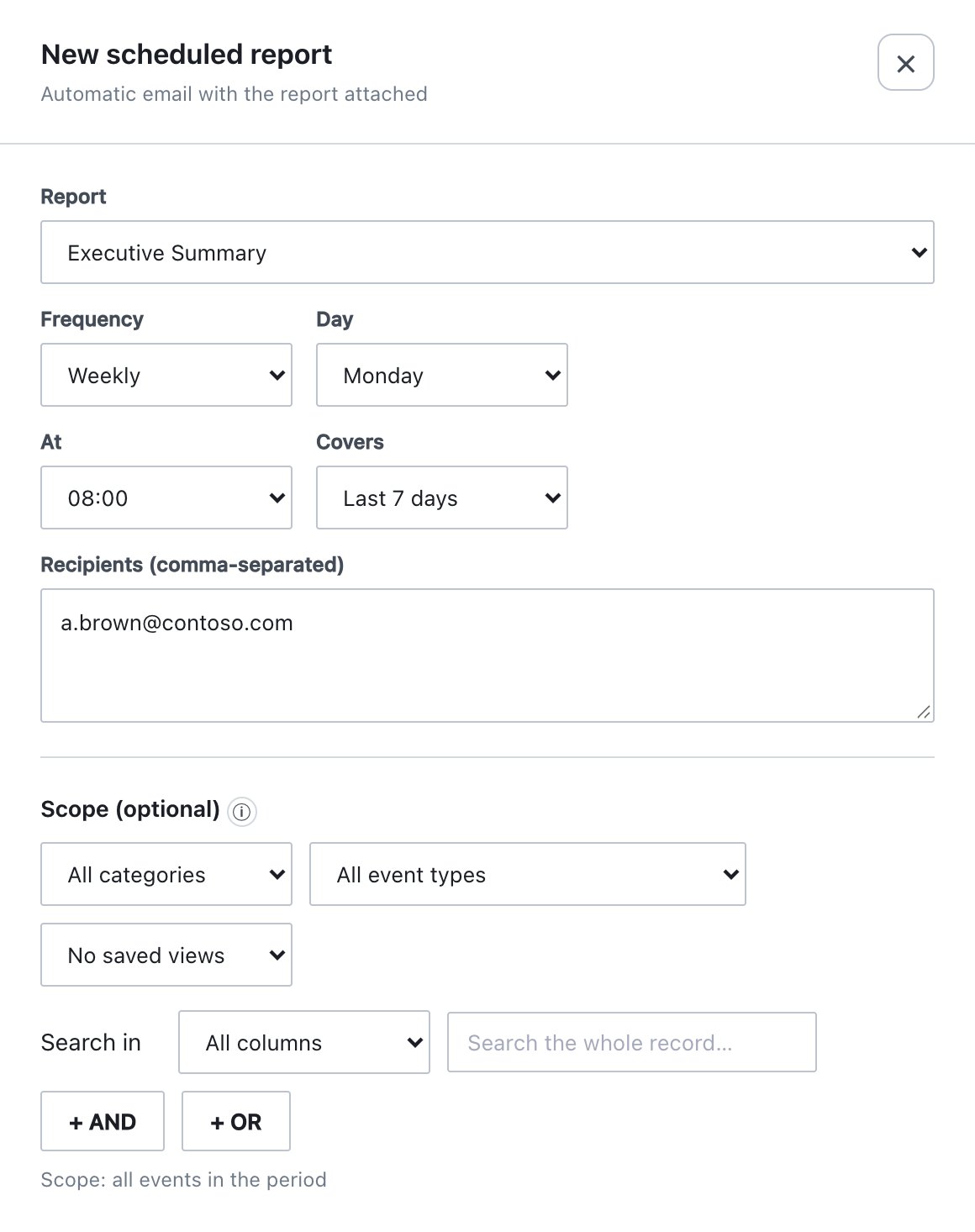
| Field | What it does | Default / allowed values |
|---|---|---|
| Report | Report type. | first type (Executive Summary) |
| Format | Only shown for multi-format reports. | |
| Frequency | Daily / Weekly / Monthly. | Weekly |
| Day | Weekday (weekly). | Monday |
| Day of month | 1–28 (monthly). | 1 |
| At | Hour of the day, in the configured time zone. | 08:00 |
| Covers | Look-back window: Last day, Last 7/14/30/60/90/180/365 days (server accepts 1–365). The window ends at the end of the run day and includes it. | Last 7 days |
| Recipients (comma-separated) | Required; max 20. | your account e-mail |
| Scope, Columns | As for a one-off report. The scope is stored as a copy, so later changes to a saved view do not affect the schedule. | — |
Behaviour
- The server checks schedules every 10 minutes and sends a due schedule at the first check at or after its hour, once per local day. A report is therefore sent within about 10 minutes after the hour.
- A schedule does not run again within 20 hours (daily), 6.8 days (weekly) or 27 days (monthly) of its last run.
- Send now runs the schedule immediately and updates its last-run time.
- Up to 50 schedules are kept. Saving any change writes
report_schedule_changed. - A failed scheduled send is logged on the server; it does not retry before the next due time.