4.2 The screen
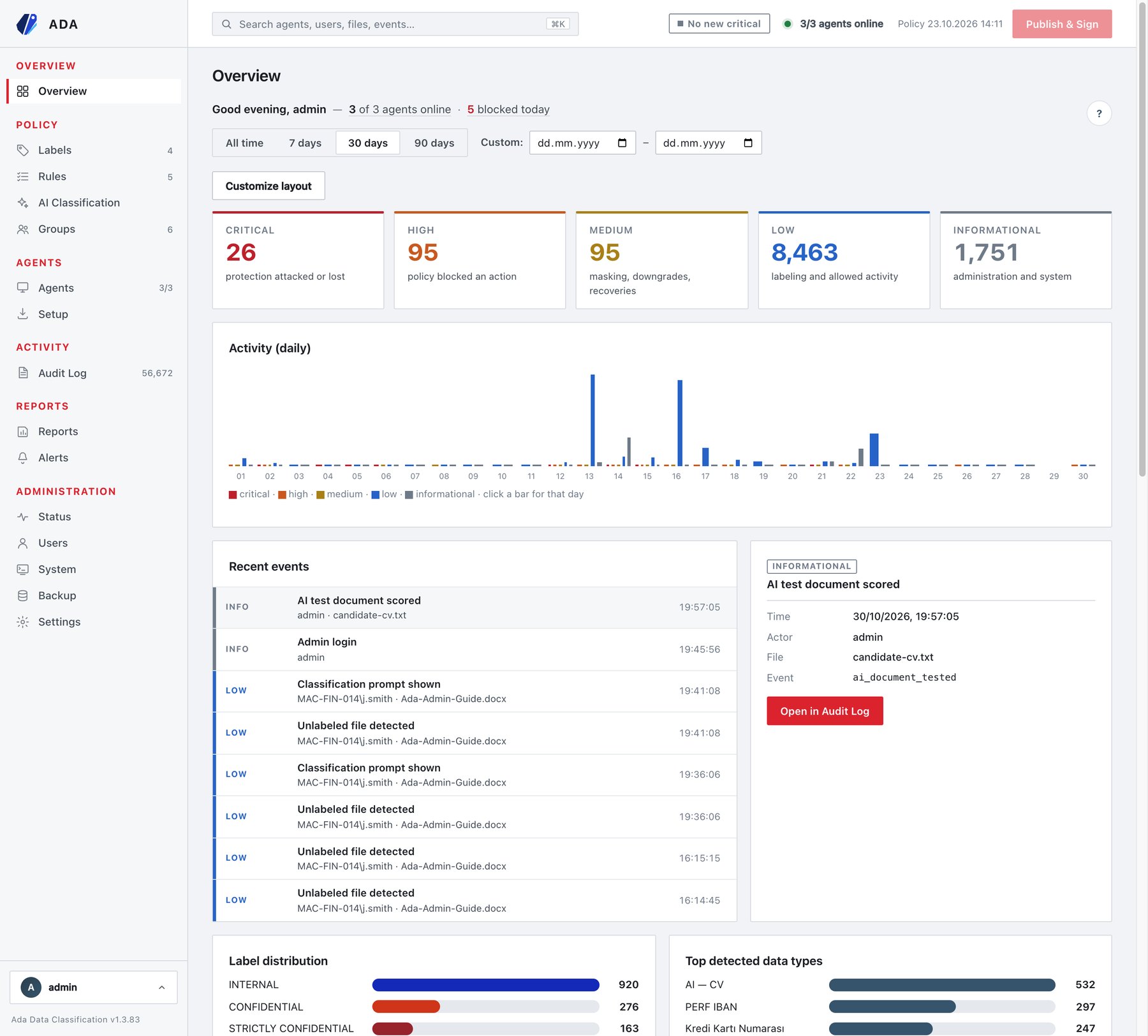
| Area | What it shows |
|---|---|
| Sidebar | Six sections with live counters next to the items (number of labels, rules, groups, agents online/total, audit records). |
| Search (top) | Opens the command palette (see below). |
| Status chips (top right) | Critical-event indicator (No new critical or a red count), agents online, and the published policy version (Policy 23.10.2026 14:11). When the draft differs from what is published, · unpublished changes is added. |
| Publish & Sign | Signs the draft and makes it available to agents. Faded when there is nothing to publish. |
| ? (each page) | Opens the page’s help panel. ⓘ next to a field explains just that field. |
| User menu (bottom left) | Account settings, light/dark theme, Log Out (section 7.4). |
The sidebar sections:
| Section | Pages |
|---|---|
| Overview | Overview (section 15.2) |
| Policy | Labels (8) · Rules (10) · AI Classification (11) · Groups (9) |
| Agents | Agents (13) · Setup (12) |
| Activity | Audit Log (section 15.3) |
| Reports | Reports (section 15.4) · Alerts (section 15.5) |
| Administration | Status · Users · System · Backup · Settings (16, 7, 6) |
The console remembers the page you were on; a browser refresh returns to it.
Command palette
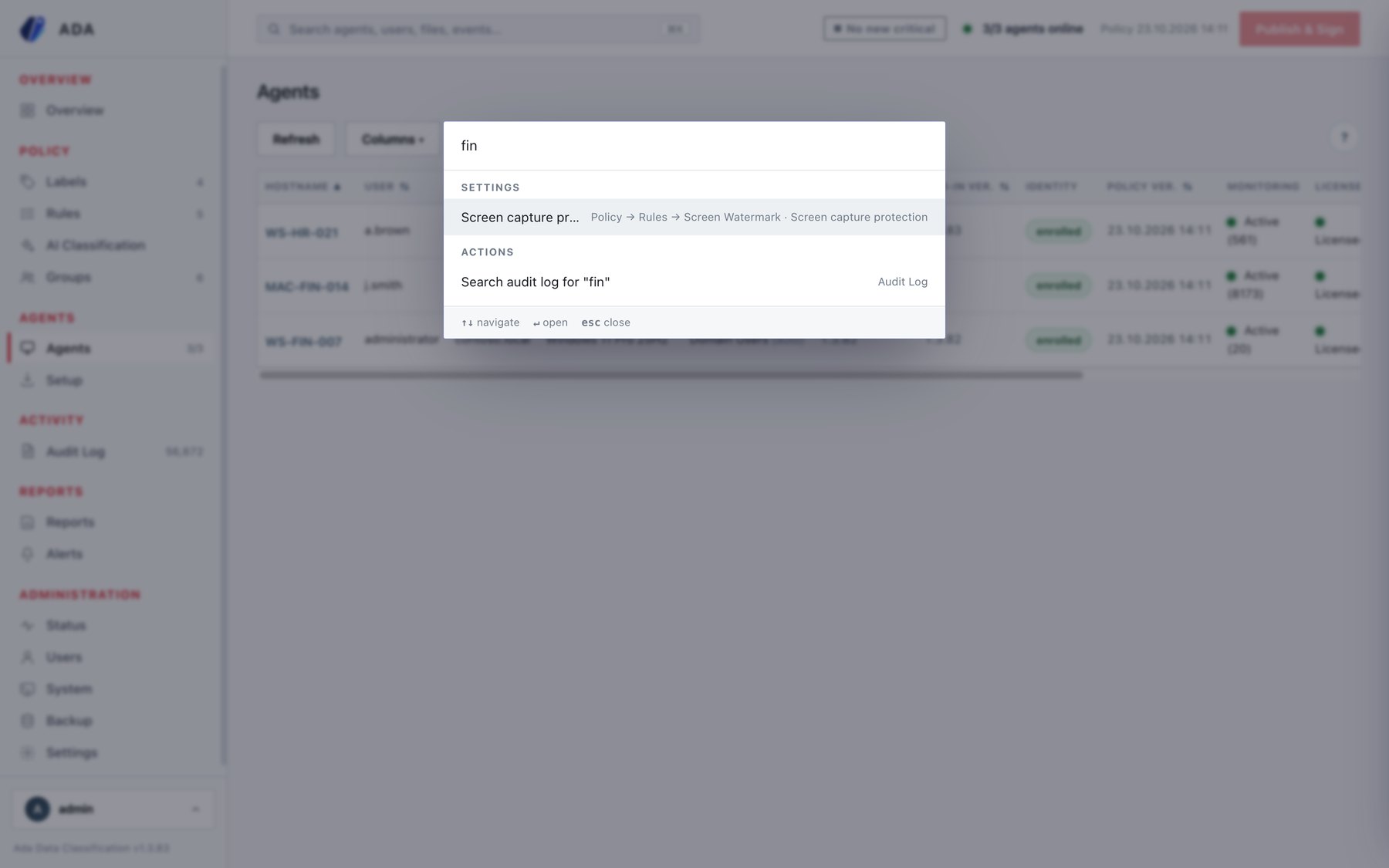
Press ⌘K (Ctrl+K on Windows) or click the search box. Type part of any setting name, page, agent, user or file name:
- Settings results jump straight to the page, sub-tab and field (for example Screen capture protection → Policy → Rules → Screen Watermark).
- Actions run a search, for example Search audit log for “…”. A print trace code typed here finds the print record.
- Use ↑ ↓ to move, Enter to open, Esc to close.