
9.4 The Groups page
The page has a help box (How do groups work?), + Add Group, one card per group in priority order, and a fixed Default card at the bottom.
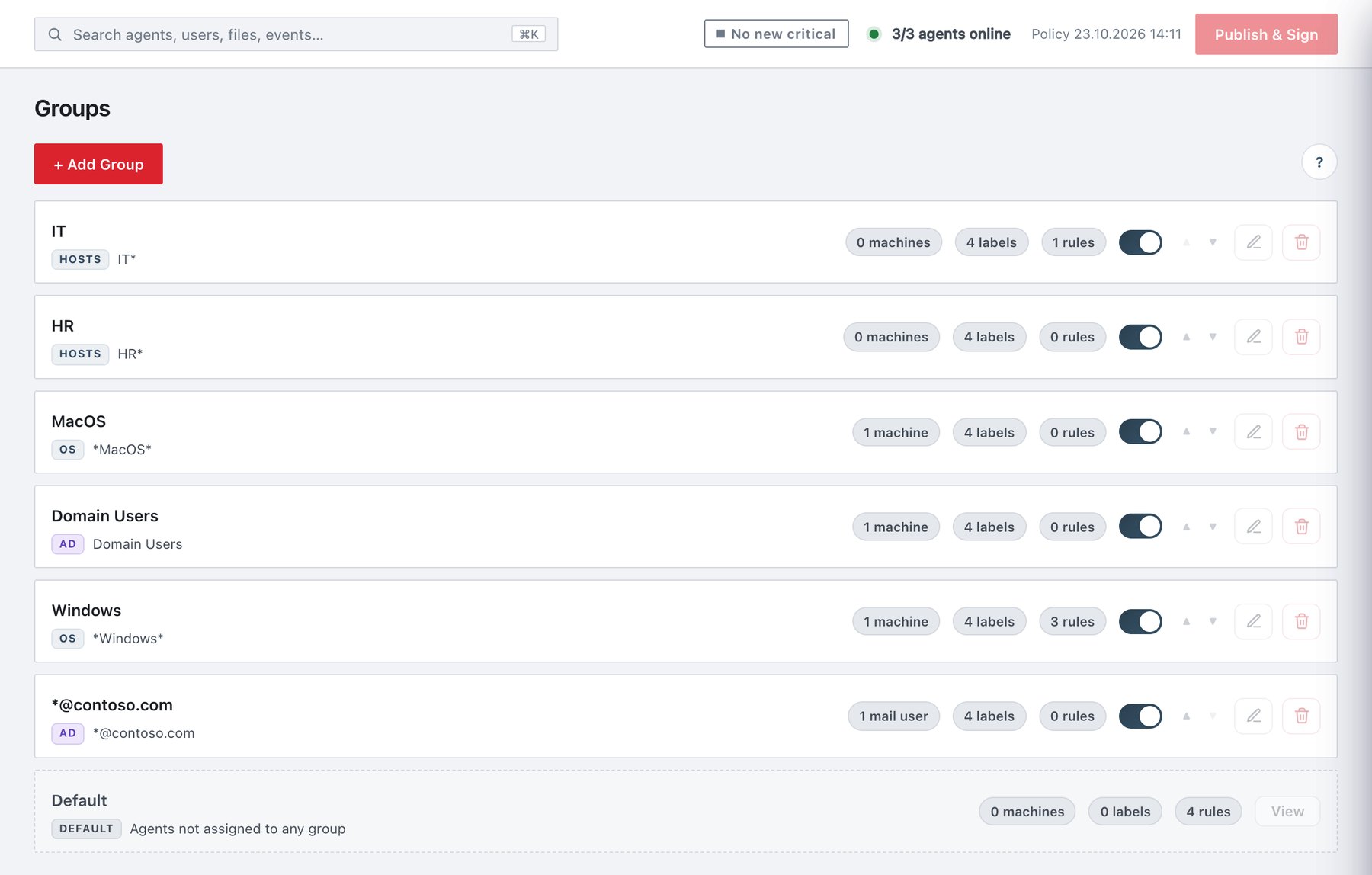
| Element | What it shows |
|---|---|
| Name | Group name. Shown in red if it is empty or duplicated. Publishing is then blocked. |
| Target badge + text | HOSTS with the machine-name patterns (or no machines yet), OS with the OS patterns (or no OS pattern yet), or AD with the AD entry names. |
| Machine counter | N machines: machines currently in the group, as the server calculates it (manual plus automatic). Hover to see the names; “(auto)” marks automatic matches. A group with only mail entries shows N mail users instead. A mixed group shows N machines · N mail. |
| N labels, N rules | Labels, and classification plus Outlook rules, assigned specifically to this group. Common items are not counted. |
| Enabled switch | Disabled groups are skipped by targeting. Their machines move to the next matching group, or to Default. |
| ▲ / ▼ | Move up / Move down: changes priority. No confirmation is asked. |
| Edit (pencil), Delete (bin) | Open the drawer, or delete the group (section 9.8). |
| Default card | Badge DEFAULT, Agents not assigned to any group, the number of Default machines, and the Common labels and rules count. View opens a read-only drawer. |
Mail users are Outlook web panel users whose address selected a group. The list is kept in server memory (up to 500 entries). It is cleared when the server restarts and fills again as panels reconnect.