
10.6 Agent Rules
Policy → Rules → Agent Rules configures the endpoint agents themselves: which modules run, file-scanning limits, unlabeled-file warnings, document metadata, the Office add-in lock, the web add-in catalog, the help button, synchronization and tamper protection.
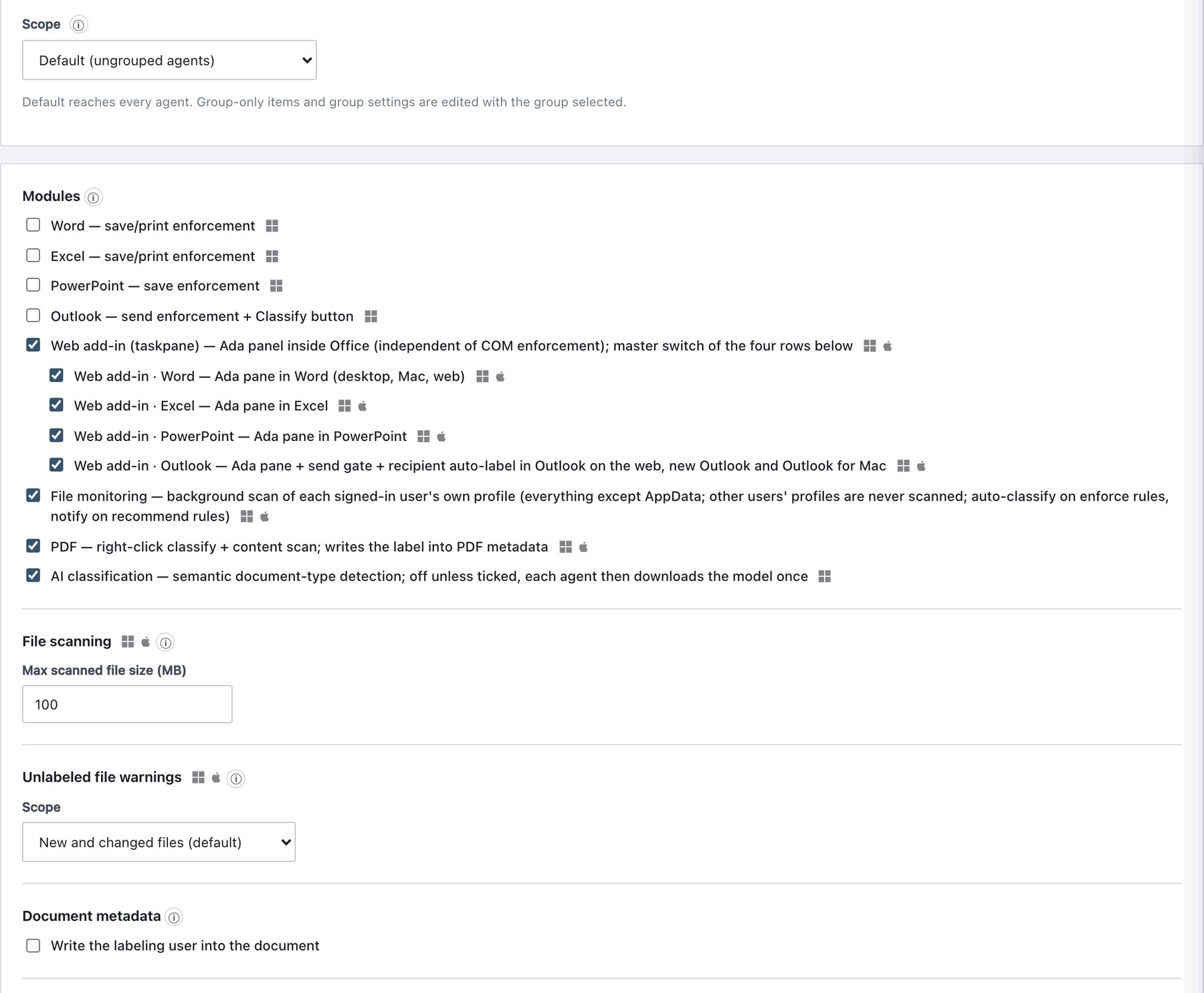
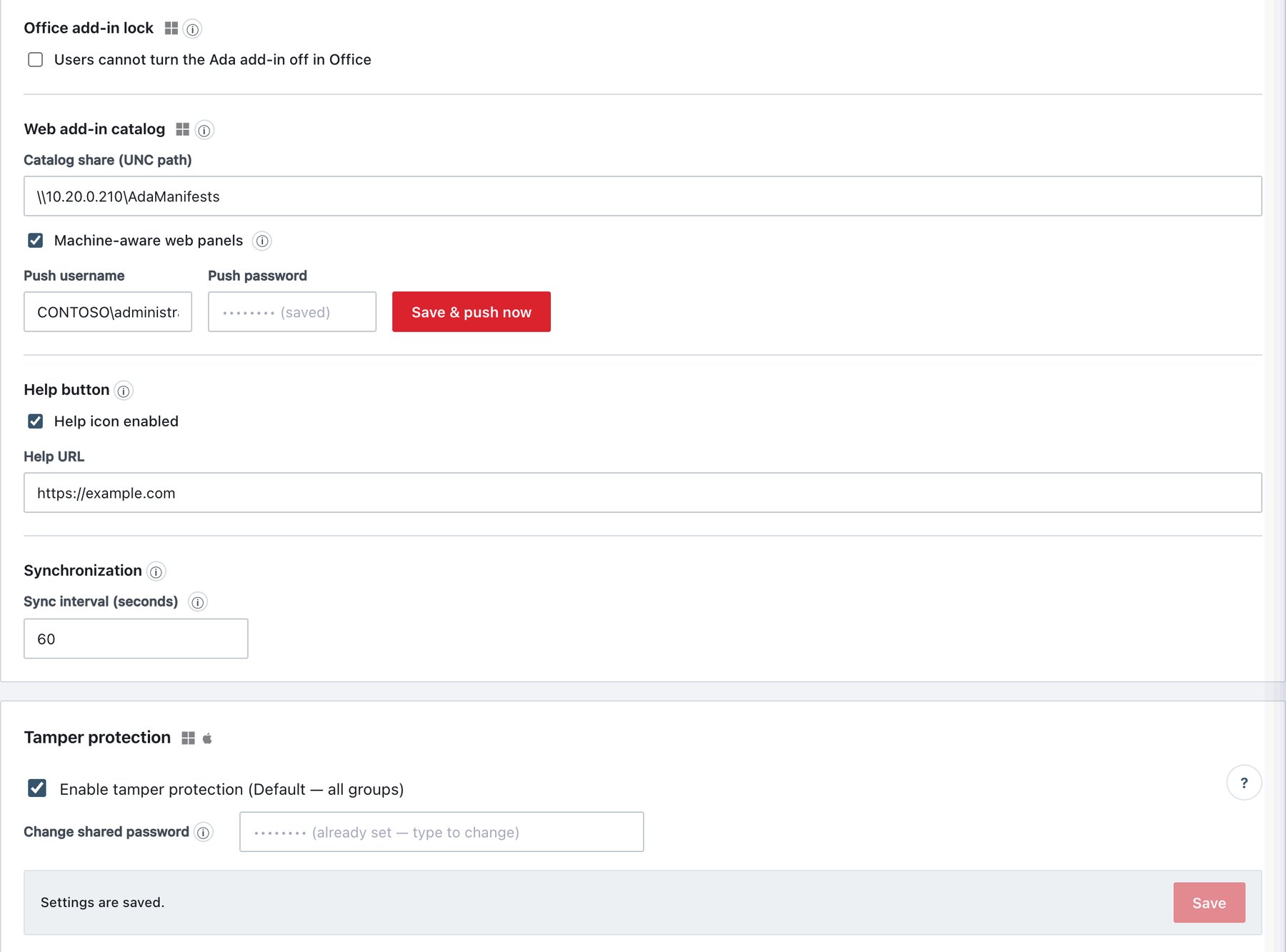
10.6.0 Scope: which settings follow the group
| Setting | Per group? |
|---|---|
| Modules (including AI classification) | Yes |
| Synchronization interval | Yes (hint This value is specific to the group.) |
| Tamper protection (enable + optional group password) | Yes |
| File scanning, Unlabeled file warnings, Document metadata, Office add-in lock, Web add-in catalog, Machine-aware web panels, Help button | No — one value for all agents |
All fields on this sub-tab (except the catalog push credentials) are kept in a draft until you click a Save button of the tab, then Publish & Sign. The publish audit record lists Agent modules changed, Sync interval changed, Unlabeled-file warnings changed or Tamper protection changed as applicable.
10.6.1 Modules
Turns whole agent modules on or off. In a switched-off Office application Ada enforcement stops — the add-in stays installed and silently inactive, no reinstall is needed, and it resumes when re-enabled. In a group scope platform icons are not shown.
| Module row (UI text) | What switching it off does | Platforms | Default |
|---|---|---|---|
| Word — save/print enforcement | Word COM add-in stops enforcing. | Windows | On |
| Excel — save/print enforcement | Excel COM add-in stops enforcing. | Windows | On |
| PowerPoint — save enforcement | PowerPoint COM add-in stops enforcing. | Windows | On |
| Outlook — send enforcement + Classify button | Classic Outlook COM add-in stops send enforcement and hides its Classify button. | Windows | On |
| Web add-in (taskpane) — …; master switch of the four rows below | Tri-state select all: ticking it turns all four web rows on, clearing it turns them off; a dash means only some are on. | Windows, macOS, web | On |
| Web add-in · Word / · Excel / · PowerPoint | In that application the Ada pane opens with Ada is disabled for this app and labels nothing. Independent of the COM switches. | Windows, macOS, web | On |
| Web add-in · Outlook | Also stops the send gate and recipient auto-label in Outlook on the web, new Outlook and Outlook for Mac — mail leaves those clients unlabeled and unchecked. | Windows, macOS, web | On |
| File monitoring | Stops the background scan of each signed-in user’s own profile (auto-classify on Enforce rules, notify on Recommend rules, unlabeled warnings, macOS save prompt). | Windows, macOS | On |
| Stops right-click classification and content scanning of PDFs (and writing the label into PDF metadata). | Windows, macOS | On | |
| AI classification — semantic document-type detection; off unless ticked, each agent then downloads the model once | Enables AI conditions in rules (see Policy → AI Classification). Off = AI conditions never match. | Windows and macOS agents (the console shows only the Windows icon) | Off |
The manifests stay deployed when a web switch is off; nothing is uninstalled.
File monitoring scope (fixed, not configurable):
only the profiles of users who are signed in are scanned — on Windows
the whole profile except AppData, on macOS the home folder
except ~/Library and ~/.Trash. Other users’
profiles on the same machine are never scanned; a profile joins at
sign-in and leaves at sign-out. Folders named node_modules,
.git, $Recycle.Bin and
System Volume Information are always skipped. Watched
extensions:
.docx .xlsx .pptx .pdf .doc .dot .xls .xlt .ppt .pot .pps
(plus content-detected files when Content-based file
detection is on). Each user’s notifications and pending-files
list show only their own files.
10.6.2 File scanning
| Field | What it does | Platforms | Default / allowed |
|---|---|---|---|
| Max scanned file size (MB) | Files larger than this are skipped by the background file agent and
audited as Agent skipped (too large). Manual right-click
classification is not limited. |
Windows, macOS | 30; integer 1–1024 (step 5 in the spin box). |
10.6.3 Unlabeled file warnings
Warns about files that carry no label at all, even when no rule matches. The file is never modified — it is added to the user’s pending list (tray / menu bar) so the user can classify it.
| Scope option | Behaviour |
|---|---|
| New and changed files (default) | Only files created or saved while the agent is running. The start-up scan produces no warnings. |
| All files in watched folders | Also everything already on disk — the first scan can produce a long list. |
| Off | No unlabeled warnings (rule-based recommendations still work). |
Platforms: Windows, macOS. If the policy has no selectable labels, no warnings are produced whatever this setting says.
10.6.4 Document metadata
| Field | What it does | Platforms | Default |
|---|---|---|---|
| Write the labeling user into the document | Every labeled document also carries the account (ID and display name) that applied the label. This is personal data that travels with the file if it leaves the organisation. Who labeled what is recorded in the audit log either way. | All labelers: Office add-ins, right-click tool, file agent, PDF and legacy Office labelers (Windows, macOS), web add-in | Off |
10.6.5 Office add-in lock
| Field | What it does | Platforms | Default |
|---|---|---|---|
| Users cannot turn the Ada add-in off in Office | Prevents switching Ada off under File → Options → Add-ins → COM Add-ins. Three layers: the user cannot write the add-in’s registry key; the agent restores the load setting every minute; a running Office session gets the add-in reconnected within seconds. | Windows | On |
Every attempt is audited (addin_reenabled,
addin_disable_blocked, addin_disable_attempt),
even when blocked. A local administrator can still switch it off — the
agent puts it back and logs it. Turn the lock off only for
troubleshooting.
10.6.6 Web add-in catalog
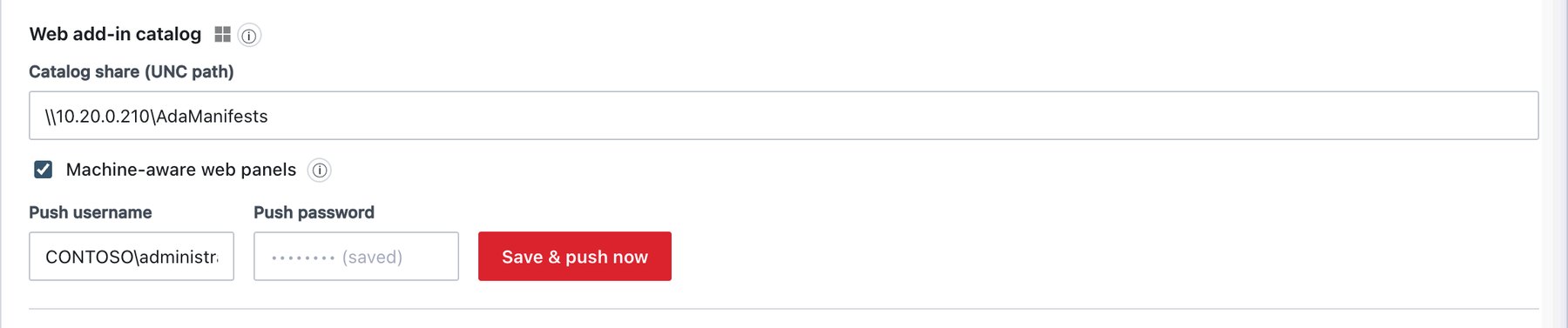
The central, read-only SMB share that hosts the Office web add-in manifests for desktop Office on Windows. No share is created on clients: the agent keeps each client’s Office trusted-catalog registration pointed at this path. Users add the add-in once per Office application (Add-ins → More Add-ins → Shared Folder); the button then stays on the ribbon.
| Field | What it does | Default / validation |
|---|---|---|
| Catalog share (UNC path) | UNC path of the share,
e.g. \\dc.contoso.com\AdaManifests. Empty = the catalog is
hidden on clients (and the web add-in is not offered in desktop Office
on Windows). Part of the policy: Save + Publish
& Sign. |
Empty. Must match \\server\share…; otherwise Enter
a UNC path like \server— Office does not accept local paths or https
URLs for add-in catalogs. |
| Machine-aware web panels | Gives each machine’s Word/Excel/PowerPoint web panel that machine’s
group policy instead of the common baseline. Every agent gets
an opaque token in the task-pane URL path; on Windows the catalog points
to a per-machine subfolder machines\HOSTNAME written by the
server; on macOS the agent patches the manifests it sideloads. Machines
without an agent, Outlook on the web and unknown tokens fall back to the
baseline. Switching it on or off changes the catalog path, so users add
the add-in once again per app. |
Off. Publishing it on with an empty UNC path is rejected (webPanelTokens requires webAddinCatalog…). |
| Push username | Account the server uses to write the manifests into the share (the share host never pulls). | e.g. CONTOSO\svc-ada-push. |
| Push password | Stored only on the server (never returned to the browser; shows
•••••••• (saved) when set). |
— |
| Save & push now | Saves the credentials immediately (no publish needed) and pushes the manifests to the UNC path of the currently published policy. | Result line:
Last push: OK — <time> (<detail>) or
FAILED. |
Automatic pushes happen on every policy publish and every 15 minutes
when manifests change. Audit events:
Web add-in catalog credentials changed,
Web add-in manifests pushed to share. A failing share is
reported in Administration → System health as Web
add-in catalog share (SMB) DOWN/RECOVERED.
10.6.7 Help button
Adds a ? icon to the classification dialogs; clicking it opens your intranet page about the classification policy.
| Field | What it does | Default / validation |
|---|---|---|
| Help icon enabled | Shows the icon. | Off. |
| Help URL | Address opened by the icon. | Empty. When enabled, must be http(s)://… (Enter a
valid http(s) URL — the Help icon is only shown with a valid
address.); publishing an enabled help button without a valid URL is
rejected. |
Shown in the Office COM add-in dialogs and right-click tool (Windows), the label picker (macOS) and the web add-in panel.
10.6.8 Synchronization
| Field | What it does | Default / allowed |
|---|---|---|
| Sync interval (seconds) | How often agents pull the policy and push audit records. If the server is unreachable, agents keep working from the cached policy. The status heartbeat (60 s) is independent. | 300; 60–86400 (step 30). Values below 60 are raised to 60 when you leave the field — the agent service wakes once per minute, so lower values have no effect. Per group. |
10.6.9 Tamper protection
A separate card, Tamper protection (Windows and macOS icons), with its own help box “What does tamper protection do?” and its own Save bar.
| Field | What it does | Default / validation |
|---|---|---|
| Enable tamper protection (Default — all groups) / … for group “Finance” | Turns protection on for ungrouped agents or for the selected group. A differs badge appears when the group’s value differs from Default. Disabled until a password exists (— set an uninstall password first). | Off. Per group. |
| Set shared password / Change shared password (Default scope) | Default uninstall password for every group. Stored only as a PBKDF2 verifier, delivered inside the signed policy so clients verify it offline. | Placeholder at least 8 characters; shorter passwords are rejected at publish (Uninstall password must be at least 8 characters.). |
| Group-specific password (group scope) | Gives the group its own uninstall password. Blank = use the shared Default password. Link Use the shared Default password instead removes the group’s own password. | Min. 8 characters. |
What protection does on endpoints:
| Windows | macOS | |
|---|---|---|
| Service hardening | Service cannot be stopped, deleted or reconfigured by ordinary
administrators; auto-restarted within about 2 s if killed; a companion
guard service watches it (mutual watchdog); missing agent files are
restored and audited (agent_binary_missing,
agent_binary_restored). |
launchd services restored by a watchdog
(tamper_detected). Root can still remove the daemon — the
macOS model is deterrent + auditable. |
| Uninstall | Ada.Uninstall.exe in
C:\Program Files\AdaClassification\addin asks for the
uninstall password (3 attempts) or a one-time token. |
ada-agent uninstall sends the password to the root
daemon; 5 failures lock the gate for 15 minutes. No admin rights needed
with the right password. |
| Console-side alternatives | Per-machine uninstall token or remote uninstall from Agents (signed command, no password). | Same. |
| Audit | uninstall_attempt_failed,
uninstall_authorized,
uninstall_completed. |
Same. |
Procedure — enable tamper protection:
- Policy → Rules → Agent Rules, Scope = Default.
- In Tamper protection type a shared password (8+ characters) in Set shared password.
- Tick Enable tamper protection (Default — all groups).
- Click Save in the card, then Publish & Sign.
- Optional: select a group in Scope to switch protection off for it or to give it its own password; Save and publish again.