
12.1 Agents → Setup
Agents → Setup is where you get everything a client
needs. It shows the install commands with the server address already
filled in, builds the enterprise installers, reveals the agent token,
offers the manual downloads, and manages the Microsoft 365 add-in key.
The server address comes from the host name in the console URL, so open
the console by its DNS name (for example
ada.example.com), not by IP. An IP ends up in the generated
commands and manifests, and TLS name validation then fails on the
clients.
The page is a single column of cards. The Client setup help box at the top summarises the flow. The cards, in order:
| Card | Purpose |
|---|---|
| Windows client (administrator PowerShell) | One-line install command for a single Windows machine |
| Enterprise deployment (SCCM / Intune / GPO) | Builds the Windows .zip installer and the macOS
.pkg installer for this server |
| macOS client (Terminal) | One-line install command for a single Mac |
| Agent authentication | Shows the agent (enrolment) token, with Reveal / Copy |
| Next steps (on the client) | What the user must do after install (restart Office; add the web panel once) |
| Downloads | Root CA, setup scripts, macOS agent zips, the Windows enforcement package, manifests, and Export with a different address |
| Production: M365 Centralized Deployment (recommended) | Manifest URLs to paste into the Microsoft 365 admin center |
| Microsoft 365 add-in key | Generates, rotates, revokes or removes the key that lets centrally deployed add-ins receive group-targeted policy |
| No Microsoft 365? Outlook send protection still works | Which Outlook manifest to use with on-premises Exchange, plus the
New-App commands |
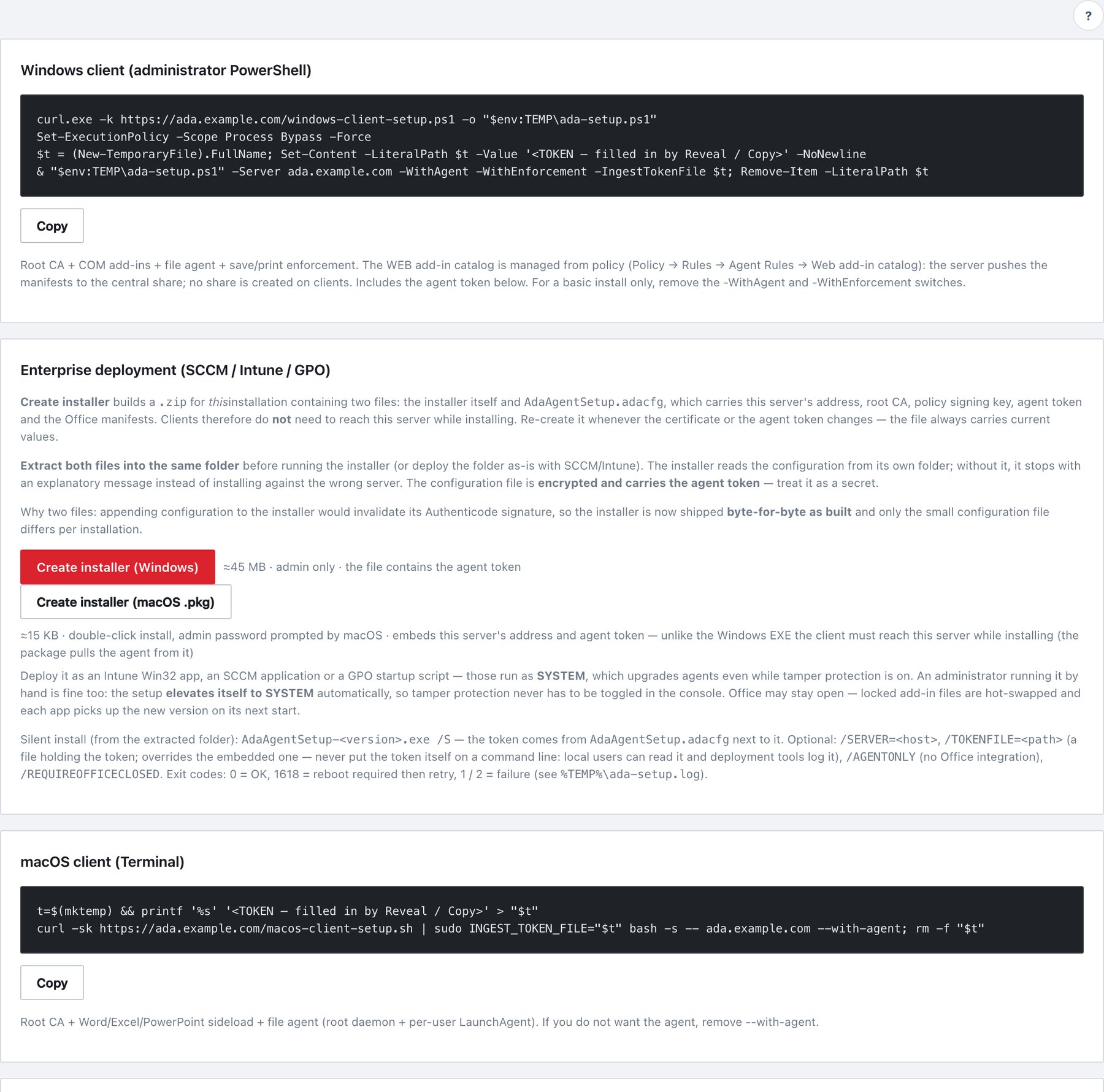
12.1.1 Windows client (administrator PowerShell)
The card shows a command like this:
curl.exe -k https://ada.example.com/windows-client-setup.ps1 -o "$env:TEMP\ada-setup.ps1"
Set-ExecutionPolicy -Scope Process Bypass -Force
$t = (New-TemporaryFile).FullName; Set-Content -LiteralPath $t -Value '<TOKEN>' -NoNewline
& "$env:TEMP\ada-setup.ps1" -Server ada.example.com -WithAgent -WithEnforcement -IngestTokenFile $t; Remove-Item -LiteralPath $t
Until you click Reveal or Copy, the
token appears as
<TOKEN — filled in by Reveal / Copy>.
Copy fetches the real token from the server, puts the
complete command on the clipboard, and writes a
setup_token_viewed audit record. Paste the command into an
elevated PowerShell window.
The token is passed in a private temporary file, never on the command line. Any local user can read process command lines, and deployment tools log them.
| Script parameter | Effect | Notes |
|---|---|---|
-Server <host> |
The Ada server (port 443) | Required unless the installer’s .adacfg file provides
it. With neither, setup stops with
ERROR: no server address. |
-WithAgent |
Turns on file monitoring (writes file-agent.json with
enabled: true) |
The file agent runs inside AdaAgentService; there is no
separate process. |
-WithEnforcement |
Installs the services and registers the four Office COM add-ins, the classic-Outlook pin, the Outlook Quick Access Toolbar button and the Explorer right-click menu | Without it, setup installs only the root CA and manifests (and the
service, if -WithAgent is given). |
-IngestTokenFile <path> |
Reads the agent token from a file | Required on a first install unless an
.adacfg file is present. On upgrade, the machine’s existing
token is kept when omitted. The file is not deleted. |
-IngestToken <token> |
Legacy: the token itself | Still accepted, but setup warns that the token is visible on the command line. If both are given, the file wins. |
-RequireOfficeClosed |
Aborts if Word, Excel, PowerPoint or Outlook is running | Default is a hot swap: locked add-in DLLs are renamed and replaced, and each Office app loads the new version on its next start. |
-LocalPayload <folder> |
Installs offline from a folder | Used internally by the EXE installer |
-PublicKeyB64 <spki> |
Embeds the policy-signing public key | Used internally by the EXE installer |
For a basic install without file monitoring or Office enforcement,
remove -WithAgent and -WithEnforcement.
12.1.2 Enterprise deployment (SCCM / Intune / GPO)
This card builds per-installation installers. A generic installer ships with each release. When you click the button, the server packages it with a configuration file holding this server’s live values.
| Button | Produces | Size | Contents |
|---|---|---|---|
| Create installer (Windows) | AdaAgentSetup-<version>.zip |
≈45 MB | AdaAgentSetup-<version>.exe,
AdaAgentSetup.adacfg, README.txt |
| Create installer (macOS .pkg) | AdaAgentSetup-macos-<version>.zip |
a few KB | AdaAgentSetup-<version>.pkg,
AdaAgentSetup.adacfg, README.txt |
The Windows .adacfg carries: - the server address - the
root CA - the policy-signing public key - the agent token - the Office
manifests
So a Windows client does not need to reach the server while installing.
The macOS .adacfg carries: - the server address - the
token - the signing key
The macOS package then downloads the agent from the server, so a Mac must reach the server while installing.
Each download: - is limited to administrators - is never cached
(Cache-Control: no-store) - writes an
installer_created audit record with the SHA-256 values
After a build the card shows three SHA-256 values:
| Value shown | Meaning |
|---|---|
| SHA-256 of the zip | Hash of the whole download. Check it on the target before
extracting,
e.g. certutil -hashfile AdaAgentSetup-1.3.83.zip SHA256
(Windows) or shasum -a 256 <file> (macOS). It is also
in the audit log. |
| Installer inside the zip | The same for every installation of this version, so it can be signed once by your own code-signing process |
| Configuration file | Unique to this download |
Procedure (Windows, SCCM / Intune / GPO): 1. Click Create
installer (Windows) and save the zip. 2. Verify the SHA-256
against the value shown on the card. 3. Extract both
files into the same folder. Do not rename
AdaAgentSetup.adacfg. The installer reads it from its own
folder. If it is missing, the installer stops with “Configuration file
NOT found next to the installer” instead of installing against the wrong
server. 4. Package the folder: - Intune: a Win32 app
(.intunewin of the folder). - SCCM: an
application with the folder as content. - GPO: a
computer startup script.
All three run as SYSTEM. 5. Install command:
AdaAgentSetup-<version>.exe /S. 6. Detection rule: -
Registry key
HKLM\SOFTWARE\Microsoft\Windows\CurrentVersion\Uninstall\AdaClassification,
value DisplayVersion, 64-bit view. - If
some machines were installed or upgraded with the PowerShell script
(which writes no Add/Remove Programs entry), detect on the file version
of
C:\Program Files\AdaClassification\service\Ada Agent Service.exe
instead. 7. Return codes: map 1618 to Retry (it is
the Windows “fast retry” code).
Installer command-line switches:
| Switch | Effect |
|---|---|
/S |
Silent. Without it a progress window is shown, plus a message box on failure. |
/SERVER=<host> |
Overrides the server address |
/TOKENFILE=<path> |
Reads the token from a file and overrides the one in
.adacfg. A relative path is resolved against the
installer’s folder. |
/TOKEN=<token> |
Legacy. Accepted, but it puts the token on the installer’s command line. Do not use it. |
/AGENTONLY |
Service and file monitoring only: no COM add-ins, no right-click menu, no Outlook pin |
/REQUIREOFFICECLOSED |
Refuses to install while Office runs (exit code 2) |
| Exit code | Meaning | What to do |
|---|---|---|
0 |
Success. The Add/Remove Programs entry “Ada Data Classification Agent” is written. | — |
1 |
Failure | Read %TEMP%\ada-setup.log (for SYSTEM installs,
C:\Windows\Temp\ada-setup.log) |
2 |
Office open and /REQUIREOFFICECLOSED given |
Close Office or drop the switch |
1618 |
Nothing was installed. A previous Ada service is “marked for deletion”. | Reboot. SCCM/Intune retry automatically, or re-run the same command. |
12.1.3 macOS client (Terminal)
The card shows:
t=$(mktemp) && printf '%s' '<TOKEN>' > "$t"
curl -sk https://ada.example.com/macos-client-setup.sh | sudo INGEST_TOKEN_FILE="$t" bash -s -- ada.example.com --with-agent; rm -f "$t"
Run it in Terminal as the user who will use the Mac
(it uses sudo). Do not run it from a root shell. If setup
cannot determine the real console user, it stops.
| Argument | Effect |
|---|---|
<server> (first argument) |
Ada server host name. Only letters, digits, .,
- and :port are accepted. |
--with-agent |
Installs the agent, the AI worker, the menu bar helper (pending list, status window, screen watermark), the Finder Quick Action and the launcher app. Without it, only the root CA and the Word/Excel/PowerPoint manifests are installed. |
INGEST_TOKEN_FILE |
File holding the token. Put it after
sudo, because sudo resets the environment. |
EWS_URL, EWS_USER,
EWS_PASSWORD (optional) |
On-premises Exchange only: installs the Outlook add-in into the user’s mailbox over EWS |
12.1.4 Agent authentication
The card explains the token and shows it masked. Click: - Reveal to show it. - Hide to mask it again. - Copy to put it on the clipboard.
The first Reveal or Copy in a page visit downloads the real value and
writes setup_token_viewed (who and from which IP; the token
value is never logged).
How the token is used: - It is an enrolment token. A
new agent uses it once to enrol. The agent then generates its own key
pair, receives a one-year certificate, and signs every later request
with its own key (section 13.3.9). - After enrolment it is used only for
re-enrolment and diagnostics upload. - Rotation is a server-side action:
bash deploy/rotate-ingest-token.sh --grace 14. During the
grace window the card shows “A previous token is still accepted until
…”. - Rotation affects new installs only. Agents that
have already enrolled keep working. - If agents that never enrolled
exist, the card says so. These are pre-1.2 agents that cannot connect to
this server; upgrade them.
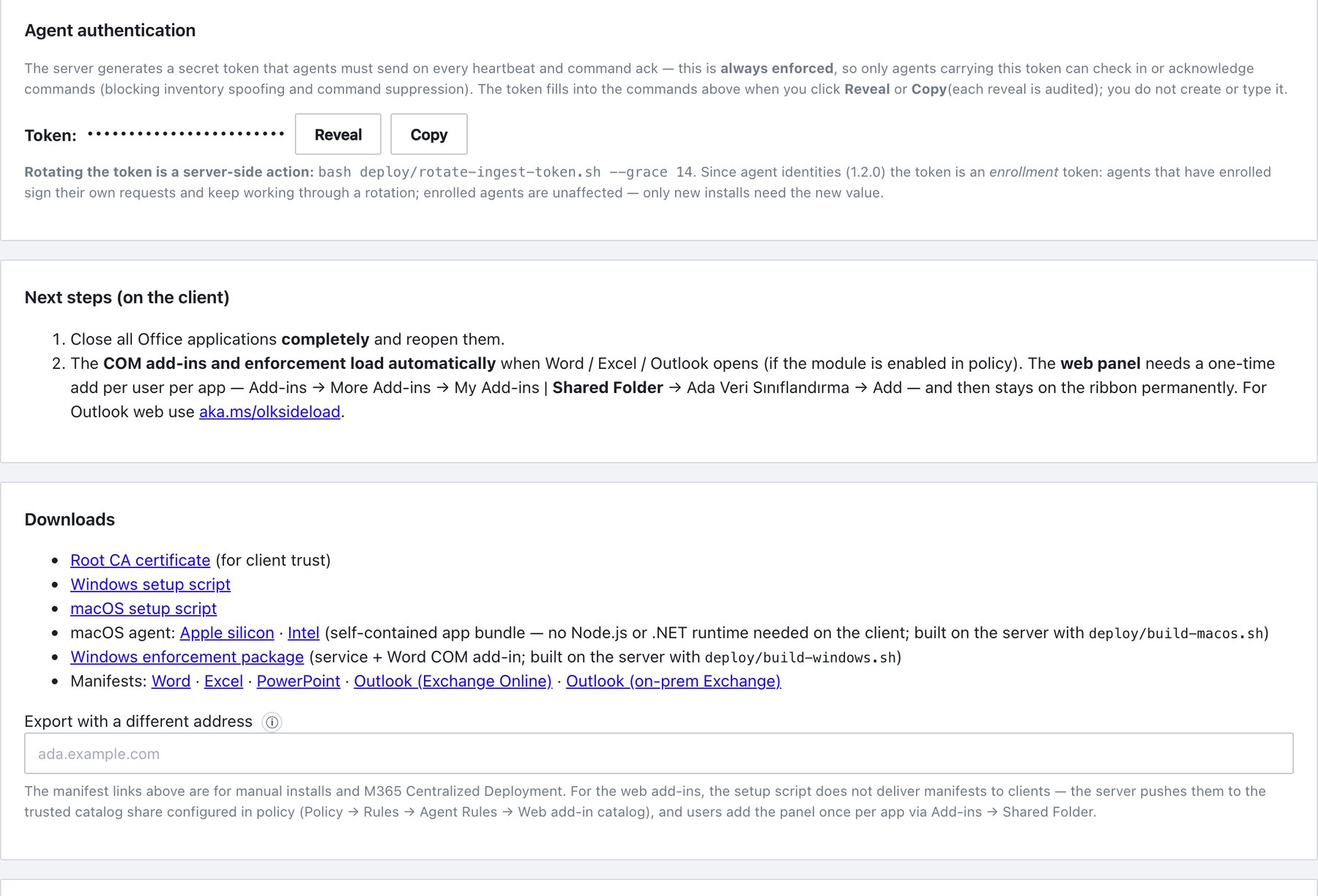
12.1.5 Next steps (on the client)
- Close all Office applications completely and reopen them.
- The COM add-ins and enforcement load automatically when Word, Excel or Outlook opens, if the module is enabled in policy.
- The web panel needs a one-time add per user per app: Add-ins → More Add-ins → My Add-ins | Shared Folder → Ada Data Classification → Add. After that it stays on the ribbon permanently.
- For Outlook on the web, sideload manually via
aka.ms/olksideload(testing only; use central deployment in production).
12.1.6 Downloads
| Link | File (served on port 443) | Use |
|---|---|---|
| Root CA certificate | /ada-root-ca.crt |
Trust the server’s certificate on clients when you use the built-in CA |
| Windows setup script | /windows-client-setup.ps1 |
Manual or scripted Windows install |
| macOS setup script | /macos-client-setup.sh |
Manual or scripted macOS install |
| macOS agent: Apple silicon · Intel | /ada-agent-macos-arm64.zip,
/ada-agent-macos-x64.zip |
Self-contained app bundle (no .NET or Node needed) |
| Windows enforcement package | /ada-windows.zip |
Services, COM add-ins, helpers. The setup script uses it. |
| Manifests | /manifest-word.xml, /manifest-excel.xml,
/manifest-ppt.xml, /manifest-outlook.xml
(Exchange Online), /manifest-outlook-onprem.xml
(on-premises Exchange) |
Manual installs, M365 / Exchange deployment |
Export with a different address. The manifests
contain the server’s own address. If clients reach the server under
another name (public FQDN, load balancer, NAT), type that address here:
a host name or IP with an optional :port, and no scheme or
path. Invalid input shows “Enter a hostname or IP (an optional :port is
allowed) — no scheme, no path.” When the input is valid, download links
appear for Word, Excel, PowerPoint, Outlook (Exchange Online) and
Outlook (on-prem Exchange). Every URL inside the manifest is rewritten
(task pane, commands, icons, AppDomain). Nothing on the server
changes.
12.1.7 Production: M365 Centralized Deployment
If you have a Microsoft 365 tenant, this is the recommended route for the web add-ins. No catalog share, certificate or client script is needed.
- Open the Microsoft 365 admin center → Settings → Integrated apps → Upload custom apps.
- Upload the keyed manifest from the next card
(recommended). Alternatively, give the plain manifest URL shown on the
card:
https://ada.example.com/manifest-word.xmlhttps://ada.example.com/manifest-excel.xmlhttps://ada.example.com/manifest-ppt.xmlhttps://ada.example.com/manifest-outlook.xml
- Assign the users or groups. Office pushes the add-ins to them. Microsoft’s propagation can take up to 24 hours.
12.1.8 Microsoft 365 add-in key
Add-ins deployed from Microsoft 365 or an Exchange organization share one manifest for all users. That manifest cannot carry a machine’s panel token. The Microsoft 365 add-in key goes into the manifest’s URL path instead. With it, the server trusts the add-in: - Outlook on the web gets the policy group that matches the user’s mail address. - The add-in receives the full content rules.
Without it, the add-in is treated as an anonymous caller. Anyone who can open the manifest can read the key, but it exposes nothing beyond what the add-in already receives.
Card states and buttons:
| State | Shown | Buttons |
|---|---|---|
| No key | “No key. Add-ins deployed from Microsoft 365 or Exchange get only the default policy …” | Generate key |
| Key active | “Key active — generation N, created |
Rotate key, Remove key, plus the Keyed manifest links |
| Rotation grace | “The previous key is still accepted until |
Adds Revoke previous key |
| Action | What happens | Audit event |
|---|---|---|
| Generate key | Creates generation 1 | webaddin_tenant_key_rotated (“First key
generated”) |
| Rotate key | Asks for confirmation, then creates a new key. The previous key stays valid for 7 days. Upload the new manifest within that window. Add-ins still on the old manifest then fall back to the default policy. | webaddin_tenant_key_rotated |
| Revoke previous key | Stops accepting the old key immediately. Use it when the key may have leaked. | webaddin_tenant_key_previous_revoked |
| Remove key | Removes the key. Every keyed add-in falls back to the default policy. | webaddin_tenant_key_removed |
| Keyed manifest link (Outlook Exchange Online, Outlook on-prem, Word, Excel, PowerPoint) | Downloads <manifest>-tenant.xml. It has the key
in the task pane and command URLs and a higher
<Version>. |
webaddin_tenant_manifest_downloaded (every
download) |
Procedure: 1. Click Generate key (or Rotate key). 2. Download the keyed manifest for each app you deploy. 3. In the Microsoft 365 admin center, Settings → Integrated apps, upload the file as an update of the existing Ada app. For a single mailbox, you can instead remove the add-in in Outlook and add the file again. 4. After a rotation, repeat step 3 within the 7-day window.
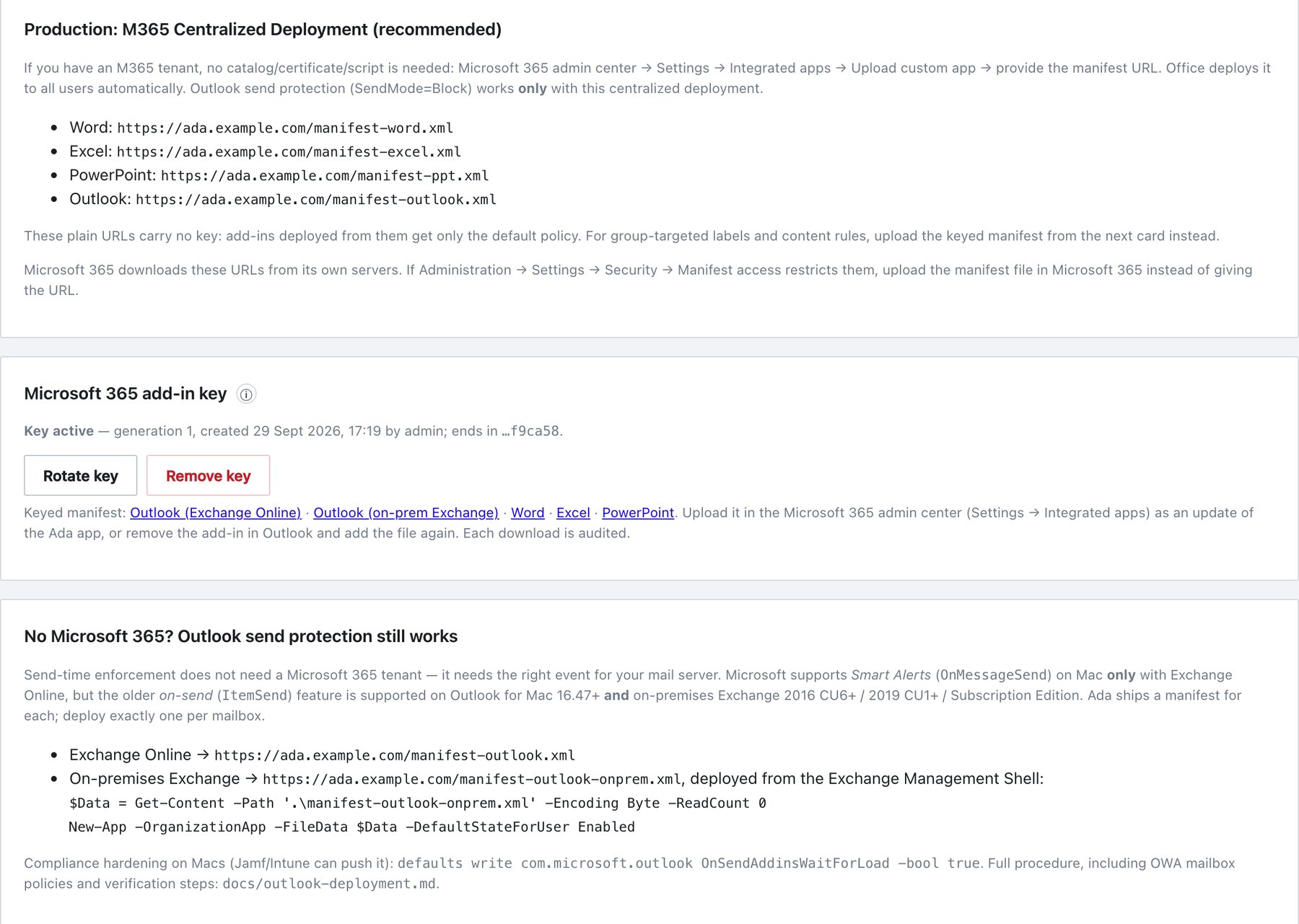
12.1.9 No Microsoft 365? Outlook send protection still works
Send-time enforcement in the web add-in needs the right Outlook event for your mail server. Microsoft 365 is not required. Deploy exactly one Outlook manifest per mailbox:
| Mail server | Manifest | Event | Block behaviour |
|---|---|---|---|
| Exchange Online | manifest-outlook.xml |
Smart Alerts (OnMessageSend), Mailbox 1.12 |
SendMode="SoftBlock": blocks while the add-in runs;
does not gate the send if the add-in cannot load at all |
| Exchange Server on-premises (2016 CU6+, 2019 CU1+, Subscription Edition) | manifest-outlook-onprem.xml |
On-send (ItemSend), Mailbox 1.8 |
Always a hard block. The reason is shown in an information bar on the message. |
| Exchange 2013 or older, IMAP/POP | — | — | No web send hook. Use the Windows COM add-in in classic Outlook. |
On-premises deployment from the Exchange Management Shell:
$Data = Get-Content -Path '.\manifest-outlook-onprem.xml' -Encoding Byte -ReadCount 0
New-App -OrganizationApp -FileData $Data -DefaultStateForUser Enabled
Hardening: - Macs:
defaults write com.microsoft.outlook OnSendAddinsWaitForLoad -bool true
(push with Jamf or Intune). - On-premises OWA: runs
ItemSend handlers only when the mailbox policy allows it:
Set-OwaMailboxPolicy <policy> -OnSendAddinsEnabled $true.