
6.2 License
Administration → Settings → License. Shows the state of the installed licence, the Installation ID that a licence is bound to, and the form to install a licence file. A valid licence is always required; there is no unlicensed or evaluation mode.
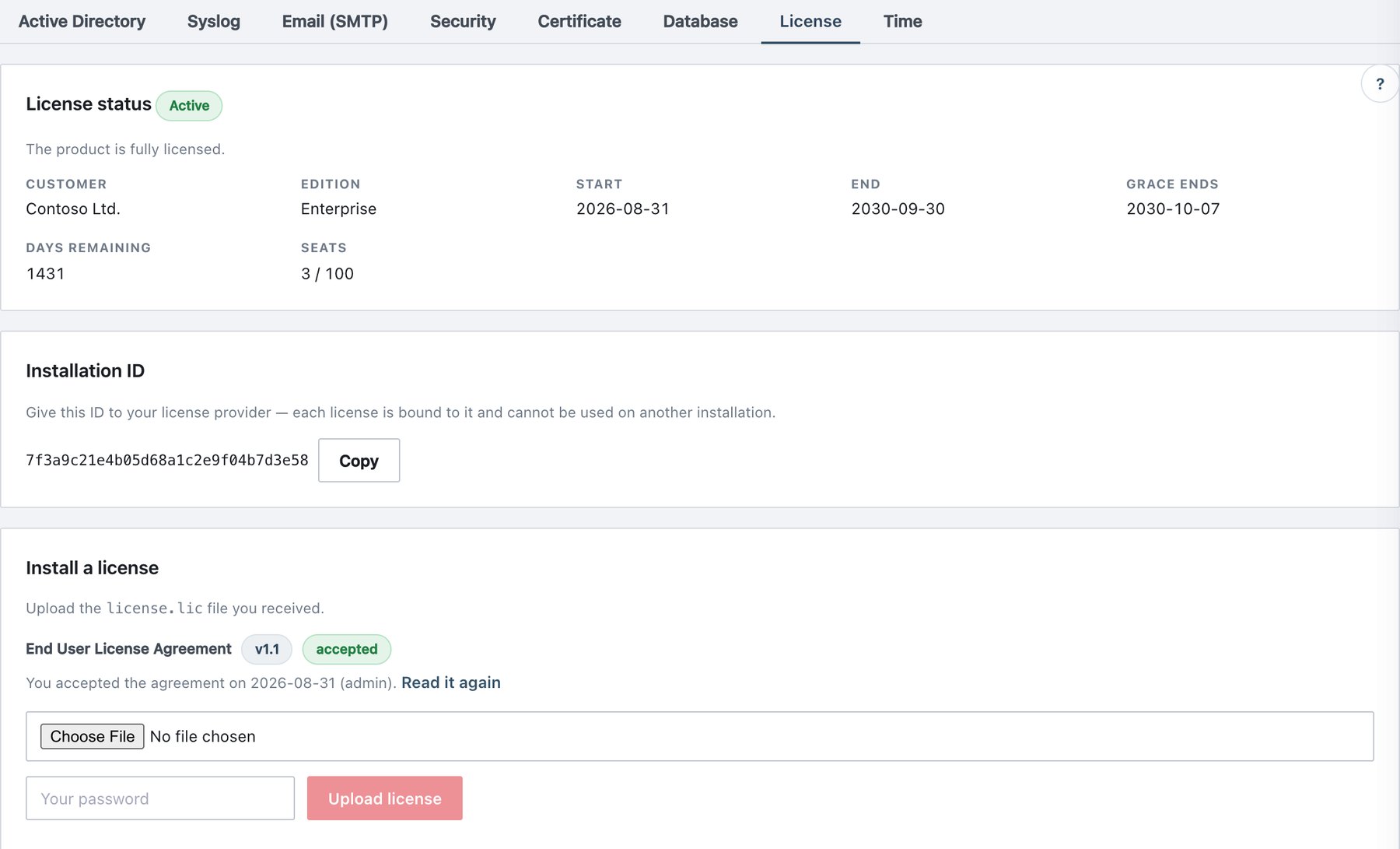
What the page shows
License status card: a status badge, a one-line explanation, and these values:
| Item | Meaning |
|---|---|
| Customer | Licensee named in the licence file. |
| Edition | Product edition in the licence. |
| Contract | Contract number (only shown when the licence carries one). |
| Start / End | First and last day of the licence term. |
| Grace ends | Last day of the grace period after End (shown when the licence defines one). |
| Days remaining | Days until End; negative during the grace period. |
| Seats | Agents currently counted / seats licensed. Red when more agents are in use than licensed; agents beyond the cap are parked (passive). |
Status badges:
| Badge | Meaning | Console | Agents |
|---|---|---|---|
| No license | Nothing installed yet. | Locked to this page | Passive |
| Not started | Start date is in the future. | Locked | Passive |
| Active | Fully licensed. | Normal | Enforcing |
| Expiring soon | Within the licence’s warning window before End. | Normal, warning banner | Enforcing |
| In grace period | Past End, inside the grace period. | Normal, warning banner | Enforcing |
| Expired | Grace period has ended. | Locked | Passive |
| Invalid | Signature or product is invalid. | Locked | Passive |
| Wrong installation | The licence belongs to another Installation ID. | Locked | Passive |
| Clock rollback | The server clock was set back (possible tampering); treated as expired. | Locked | Passive |
Installation ID card: the ID your licence is bound to, with a Copy button.
Install a license card (administrators only): the
End User License Agreement line, a file picker for
license.lic, a password field and Upload
license.
Install or renew a licence
- Copy the Installation ID and send it to your Ada Security contact with the required seat count and term.
- When you receive
license.lic, open Settings → License. - If the agreement has not been accepted on this installation, click Read the End User License Agreement. The dialog’s I agree button unlocks only after you scroll to the end of the text. Click I agree.
- Choose the file. A file that is not a licence is rejected at once (That file is not a valid license (.lic).).
- Type your console password in the Your password field and click Upload license.
- The message shows the new status, for example License installed — status: Active.
Renewal is the same procedure with the new file. Nothing has to be changed on the clients.
Behaviour
- The server checks the agreement acceptance and your password itself;
the checkbox and button state are only conveniences. The first
acceptance of an agreement version is recorded with your user name and
address (audit event
license_eula_accepted). Each installation writeslicense_installed. - The licence is embedded in the signed policy, so agents receive the new state on their next policy sync.
- The console polls the licence state every minute; expiry, grace and lock transitions appear even if nobody touches the page.
- While locked, sign-in, your own password change and the licence pages keep working, so an administrator can always recover by uploading a valid licence.
- Rebuilding a server: while no licence has ever been installed, the locked console also offers Restore full backup; the backup brings its licence back (Chapter on Backup).
- Seats: every agent seen recently occupies a seat. Deleting stale agents on Agents, or the automatic offline-agent cleanup (section 6.9), frees seats.
- Licence events (
license_expiring,license_grace,license_expired,license_seat_exceeded,license_clock_rollback,license_install_mismatch,license_invalid) raise alerts when the License trigger is on in Reports → Alerts (on by default), and are forwarded to syslog.