15.2 Overview
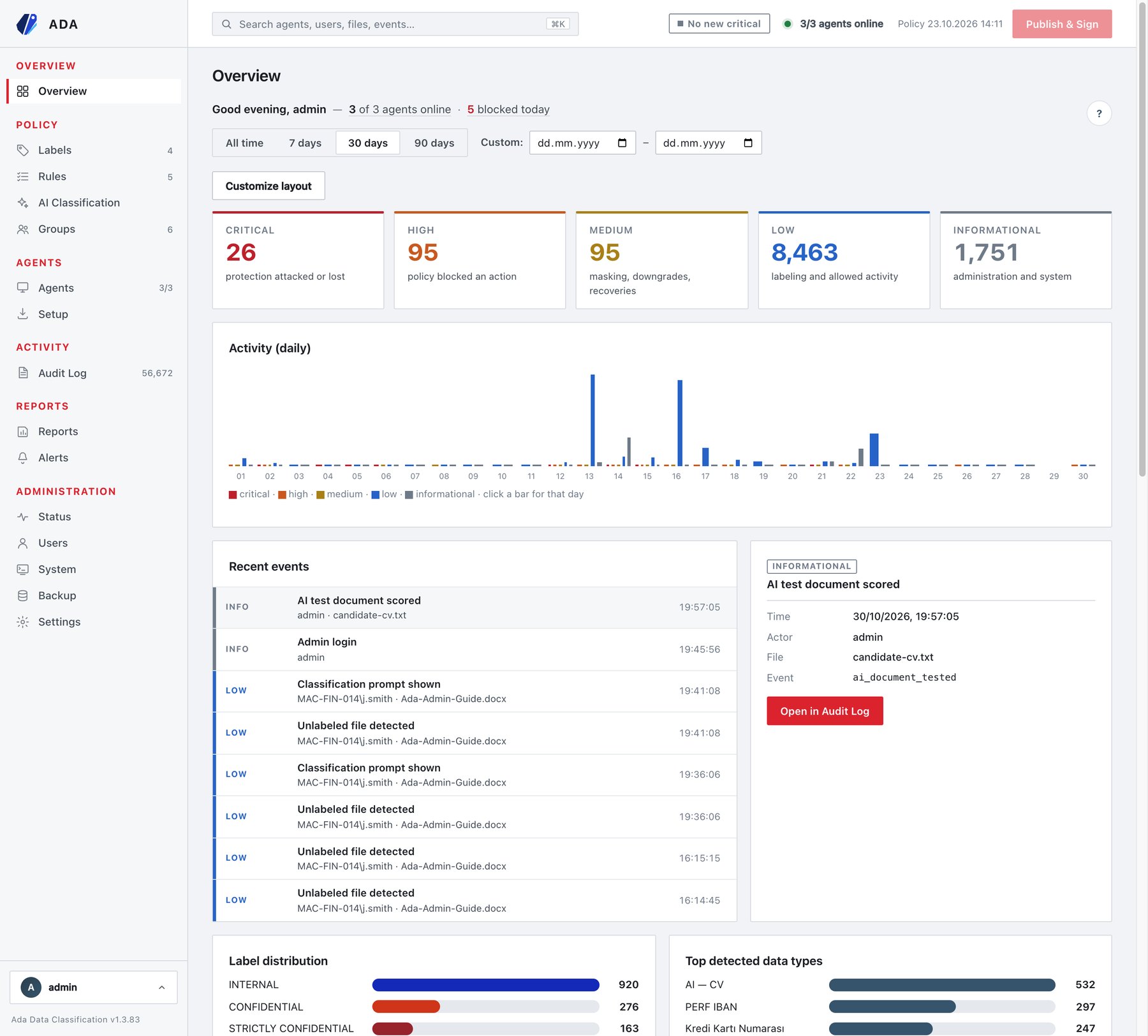
Overview is the landing page after sign-in. It summarises the audit log for a period and the live agent inventory, and every number is a drill-down into the Audit Log or the Agents page.
Greeting line
The first line reads Good morning, <user> — 12 of 14 agents online · 3 blocked today · license expires in 41 days.
| Item | Shown when | Click |
|---|---|---|
| N of M agents online | Always. An agent is online if it sent a heartbeat in the last 180 seconds. | Opens Agents. |
| N blocked today | Only when the period is broken down by day (7 days, 30 days, or a range of 31 days or less). Highlighted when N > 0. | Opens the Audit Log with category Blocking for today. |
| license expires in N days | Only when 60 days or fewer remain. Highlighted at 14 days or fewer. | — |
Period
| Control | Values | Default |
|---|---|---|
| Presets | All time, 7 days, 30 days, 90 days | 30 days |
| Custom: | Two date pickers (from – to). Picking either date switches to the custom range. | empty |
The period applies to every audit-based widget. Agent widgets (Agent health, Agent versions, Policy drift, Office add-in coverage) always show the live inventory. Days are calendar days in the time zone set under Administration → Settings → Time.
The activity chart adapts its buckets to the span: 31 days or less → daily, up to 182 days → weekly (Monday–Sunday), longer → monthly. All time starts at the oldest record still in the log.
The page refreshes every 30 seconds while it is visible (it pauses in a background tab). The server caches the computed figures for 30 seconds, so several administrators looking at the same period share one computation.
Widgets
| Widget | Default size | What it shows | Click opens |
|---|---|---|---|
| Severity | full | Five tiles — Critical, High, Medium, Low, Informational — with the count of all records in the period (administration and system events included) and a one-line hint. | Audit Log filtered to that severity and period. |
| Activity over time / Activity (daily/weekly/monthly) | full | Stacked bars per bucket, one layer per severity. Tooltip lists the counts. | Audit Log for that day/week/month. |
| Recent events | full | The 8 newest records in the period (severity strip, event name, actor, file, time) and a detail pane for the selected one: Time, Actor, Machine, File, Label, every detail field, raw event id. | Open in Audit Log opens that event type on that day. |
| Label distribution | half | Labeling events (the dashboard’s applied set) per label, in the label’s colour. Names are resolved from the current policy; deleted labels are left out. | Audit Log, category Labeling, searching the label name. |
| Top detected data types | half | Top 10 detection rule names found in records (each record counted once per type). | Audit Log searching the type name. |
| Blocking by action | half | Count per blocking event (Unlabeled save, Save (label policy), Unlabeled send, Attachment send, Send (label policy), Unlabeled print, Print (label policy), Copy (label policy), Downgrade blocked, Lower label blocked). | Audit Log for that event. |
| Activity by application | half | Labeling + blocking + recommendation events per surface: Word, Excel, PowerPoint, Outlook, File agent, Symantec DLP, Other. | Audit Log searching the application. |
| Most active users | half | Top 10 actors of labeling, blocking and recommendation events. | Audit Log searching the user. |
| Agent health | half | Online / offline / disabled / pending counters and up to 6 problem machines (awaiting approval, disabled, offline with “last seen”). | Agents. |
| Agent versions | half | Agents per agent version, compared with the server version; older versions are marked outdated. | Agents. |
| Policy drift | half | The published policy version and the agents still reporting an older one (up to 8 listed). | — |
| Office add-in coverage | half | For Windows agents: how many have the Word, Excel, PowerPoint and Outlook COM add-in present (n/total); tooltip lists missing machines. | Agents. |
| Downgrades & justifications | half | The 8 newest label_downgraded records: user, file,
previous → new label, and the justification typed (or “no
justification”). |
Audit Log for that event and day. |
| Top blocked users | half | Top 10 users by number of blocked events. | Audit Log, category Blocking, searching the user. |
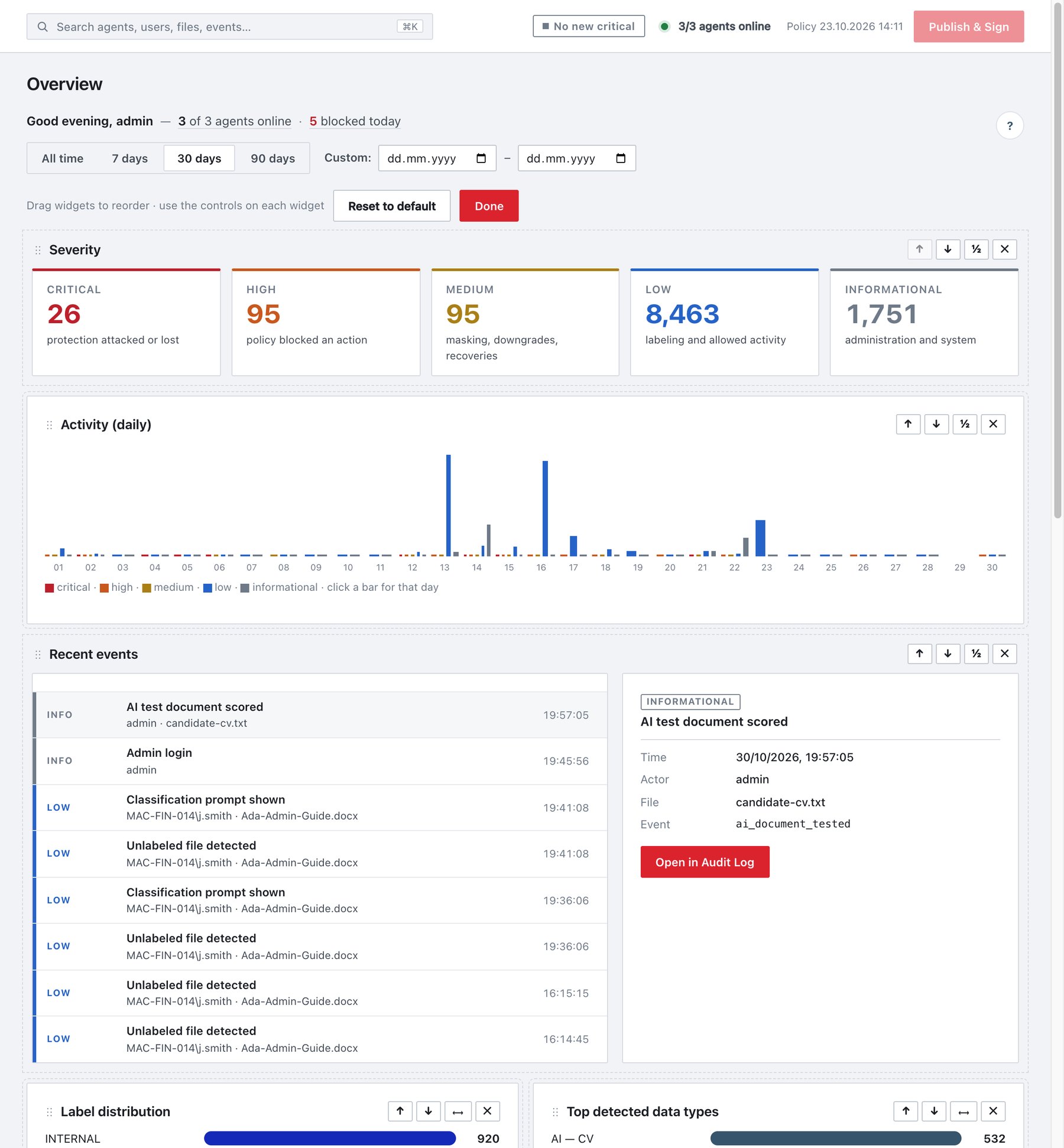
Customising the layout
Each console user has their own layout, stored on the server, so it follows you to any browser.
- Click Customize layout.
- Drag a widget by its ⋮⋮ grip and drop it on another widget to place it before that one, or use ↑ / ↓.
- Use ½ / ⟷ to switch between half and full width, ✕ to hide a widget.
- Bring hidden widgets back with Add widget….
- Click Done.
Each change is saved automatically about 0.6 seconds later (“Layout saved”). Reset to default restores the standard board. The Overview layouts are included in configuration backups (section Overview).