
11.5 Your document types
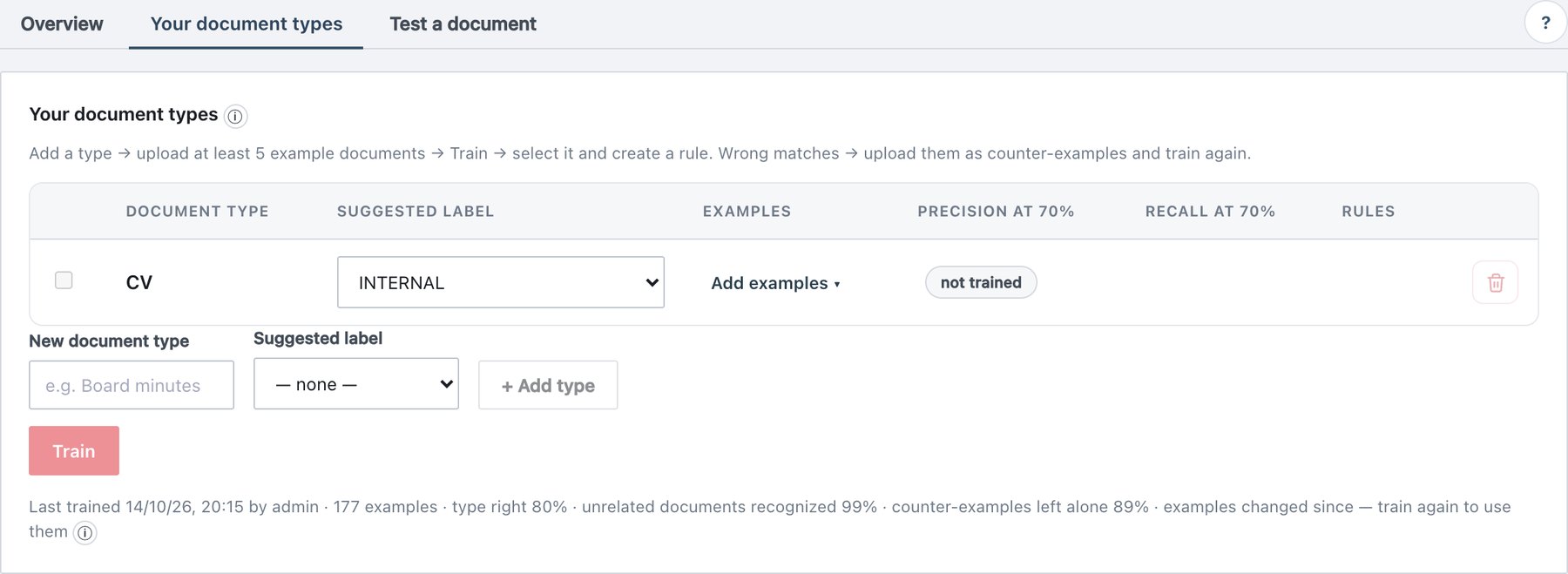
Policy → AI Classification → Your document types is a single card that holds the whole teaching cycle:
Banners at the top of the card:
| Banner | Meaning |
|---|---|
| The AI service (ada-ml) is not responding — uploads, training and test documents are unavailable. | Upload and Train are disabled until the service is back. |
| No AI model is installed on this server, so nothing can be trained. | No model package on the server. |
| The AI model was upgraded since the last training — train again so agents receive your types. | A product upgrade brought a new model. Your trained layer belongs to the old model and is not sent to agents until you train again (section 11.9.4). |
11.5.1 The document types table
| Column | Content |
|---|---|
| (checkbox) | Selects the type for + Create rule from selected. Enabled only for trained types. |
| Document type | The type name. |
| Suggested label | Drop-down of policy labels (and a second drop-down for sub-labels when the label has any). Changes are saved immediately. |
| Examples | Link N examples ▾ (or Add examples ▾) that opens
the examples panel. Extra hints: N counter-examples; N more
needed when below 5; few examples badge from 5 to
19. |
| Precision at 70% | Measured precision of the trained type at the default threshold; — if the type never fired at 70 %. |
| Recall at 70% | Measured recall at 70 %. Both columns show a
not trained badge for types not in the trained layer. |
| Rules | Number of rules (published or in the current draft) that use the type. |
| (trash icon) | Delete. Disabled while a rule uses the type; the tooltip names the rules (Used by: …). |
11.5.2 Creating a document type
- Open Your document types.
- In the row under the table, enter New document type, for example Board minutes.
- Choose the Suggested label (optional) and, if the label has sub-labels, a Sub-label.
- Click + Add type. The type is created and its examples panel opens.
| Field | What it does | Default / allowed values |
|---|---|---|
| New document type | Name shown in the console, in the rule editor, in the user’s label window (AI suggestion: Board minutes …) and in the audit. | Required, 2–60 characters (spaces collapsed). Must be unique, case-insensitive. + Add type stays disabled under 2 characters. |
| Suggested label | The label pre-filled when you create a rule from this type. | — none — or any label in the policy. |
| Sub-label | Sub-sensitivity pre-filled with the label. Shown only when the label has sub-labels. | — none — or a sub-label of the chosen label. |
Limits: 50 document types. The server gives each type a permanent internal ID; rules refer to the ID, so the type can be relabelled without breaking rules. The console does not offer renaming — to change a name, create a new type.
11.5.3 Uploading examples
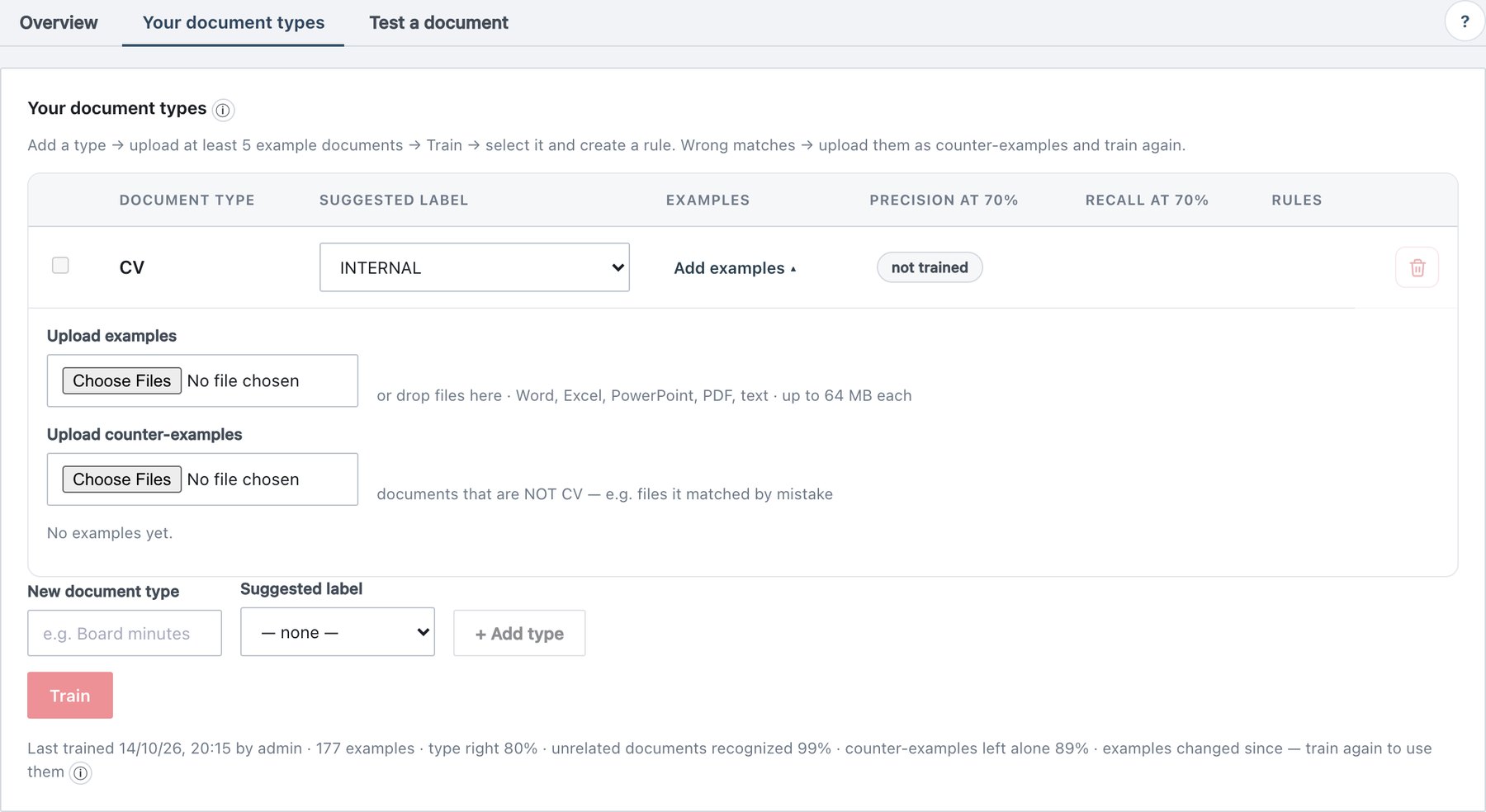
Click the Examples link of a type to open its panel.
- Click Upload examples and select one or more files, or drag files onto the row (or drop files here).
- Each file appears in a progress list: waiting → reading… → added (docx, 1,234 words) or the error in red.
- Files are sent one at a time; a failed file does not stop the others.
- The list of stored examples refreshes when all files are done.
| Item | Value |
|---|---|
| Accepted formats | Word (.docx, .docm, .dotx), Excel (.xlsx, .xlsm), PowerPoint (.pptx, .pptm), PDF, Word/Excel/PowerPoint 97-2003 (.doc, .xls, .ppt), text (.txt, .csv). The file type is detected from content, not only the extension. |
| Size limit | 64 MB per file. Larger files are rejected in the browser (larger than 64 MB). |
| Minimum per type | 5 examples (training refuses types with fewer). |
| Recommended per type | 20 or more, varied documents. |
| Maximum | 500 examples per type (examples + counter-examples), 3,000 in total. |
| Duplicates | The same text cannot be stored twice, in any type: The same text was already uploaded as “file.docx” (Type). |
| Not accepted | Files with no readable text (scanned images without a text layer, empty or password-protected files), archives, executables: Unsupported file type… / No text could be read from this document… |
The stored examples are listed under the upload controls:
| Column | Content |
|---|---|
| File | File name; counter-examples carry a not this type badge
(examples are listed first). |
| Kind | Detected format (docx, pdf, xls, text …). |
| Words | Words read from the document. |
| Added | Date, time and the administrator who uploaded it. |
| (button) | Remove deletes the stored example immediately. |
Choosing good examples
- Number matters most. With about 8 examples a type typically catches a third to four fifths of differently worded documents; with about 25, two thirds to nearly all.
- Language matters. Upload examples in every language your users write in; a balanced set (for example 10 Turkish + 10 English) works much better than 20 in one language.
- Vary them. Different authors, years, templates and lengths, written as users really write them. Near-copies (the same template filled in for 20 people) count as one document when quality is measured.
- One type per meaning. If two types are hard to tell apart for a human, they will be hard for the model too; consider merging them.
11.5.4 Counter-examples
A counter-example is a document that is not the type — typically a file the type matched by mistake in test mode or in Test a document.
- Open the type’s examples panel.
- Click Upload counter-examples and select the files (documents that are NOT Board minutes — e.g. files it matched by mistake).
- Click Train again. Counter-examples take effect only after training.
Rules:
- Counter-examples are trained as “none of your types” with their own weight, so 5–10 counter-examples carry as much weight as a type’s examples.
- They do not count toward a type’s 5-example minimum.
- If the file is actually one of your other types, add it there as an example instead.
- The same text cannot be both an example and a counter-example.
- Deleting a type deletes its counter-examples too.
11.5.5 Deleting a type
- Click the trash icon of the type (disabled while any rule uses it — remove the AI condition from those rules first, save and publish).
- Confirm with Delete with N example(s), or Cancel.
The type and all its stored examples and counter-examples are deleted from the server. If it was the last type, the trained layer is removed and the policy is re-signed; agents stop scoring at the next policy sync.
11.5.6 How examples are stored
| Aspect | Behaviour |
|---|---|
| Original file | Never stored. ada-api passes it in memory to ada-ml, which extracts the text in a temporary in-memory area and discards it. |
| What is kept | Extracted text and its vector, compressed and encrypted with AES-256-GCM (one record per example, bound to its ID). The text is kept so examples can be re-read when the model is upgraded. |
| Key | A random 256-bit key generated on first use, stored in the server’s data folder with owner-only permissions. |
| Duplicate check | A keyed hash (HMAC) of the text, so the index cannot be used to test whether a given text was uploaded. |
| Logging | ada-ml never logs file names or text. Upload, delete and test events go to the audit log with the file name (section 11.11). |
| Backup | Types, encrypted examples, key and trained layer are in a Full backup. They are not in a configuration export, so examples never move to another server that way. |